お客様の素早い設計とより早い製品化を実現する、技術情報と専門知識をご紹介します。
1
Out of the Box2
Get Software3
Plug It In4
Build, RunSomething went wrong! Please try again.
You can watch the video or follow the below step-by-step guide below to set up your software for the S32K344MINI-EVB evaluation board:
Download and install the S32 Design Studio IDE for S32 Platform.
Note: You will receive activation code through email.
DOWNLOAD S32 DESIGN STUDIO IDE
Something went wrong! Please try again.
Go to Help → S32DS Extensions and Updates from the top menu to open the S32DS Extensions and Updates dialogue.
Note: In case of installation issues, please ensure that the latest version of S32 Design Studio Platform package and S32 Design Studio Platform Tools package is installed.
Continue with the installation of the RTD for S32K3xx:
Something went wrong! Please try again.
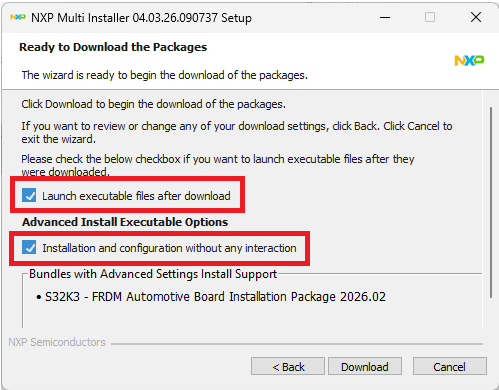
Download and install Elektrobit tresos Studio/AUTOSAR Configuration Tool from S32K3 Standard Software Package.
Download and install the .exe file of the S32K3 Real-Time Drivers for Cortex-M from the S32K3 Standard Software Package.
The installer will ask for the EB tresos installation directory on your disk, saving time in configuration.
Note: You will receive an activation code via email. If you installed RTD prior EB tresos, create a SW32K3_RTD_4.4_x.y.z.link file in: C:\EB\tresos\links folder with the content: "path=C:/NXP/SW32K3_RTD_4.4_x.y.z", where x,y,z refers to installed RTD version.
Something went wrong! Please try again.
S32K344MINI-EVB performs better when using the FreeMASTER Run-Time Debugging Tool.
Note: Check the FreeMASTER page for the latest version.
The FreeMASTER communication driver for S32K3 microcontrollers is also needed. Download it from the Automotive SW → S32K3 → S32 FreeMASTER link in the S32K3 Standard Software Package.
Open S32DS Extensions and Updates dialog (Menu → Help → S32DS Extensions and Updates), click on the Add Update Sites link and navigate to the FreeMASTER communication driver for S32K3 (zip file starting with "com.") on your disk.
Install the FreeMASTER communication driver for S32K3.
Aditional optional software may be downloaded from the S32K3 Reference Software Package.
Something went wrong! Please try again.
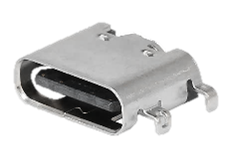
The first method to provide power is via J9 USB-C connector (this board does not include power delivery), but the current will be limited to 500 mA (this to enable for Desktops with USB-A or USB-C connector), so this supplying method is only recommended for low-demand current applications. Even in this supplying method Controller Area Network (CAN) or Local Interconnect Network Physical Layer (LIN PHY) (Is not recommended to use both PHYs at maximum current demand at the same time) can work because the FS26 enable a boost circuit to supply the +12.0 V voltage refences of the PHYs.
The maximum current demand for +12.0 V in this supplying method is 170 mA due to the boost circuit consumption. To supply the board with the above descripted methodology, follow the steps descripted in the Table 5.
Something went wrong! Please try again.
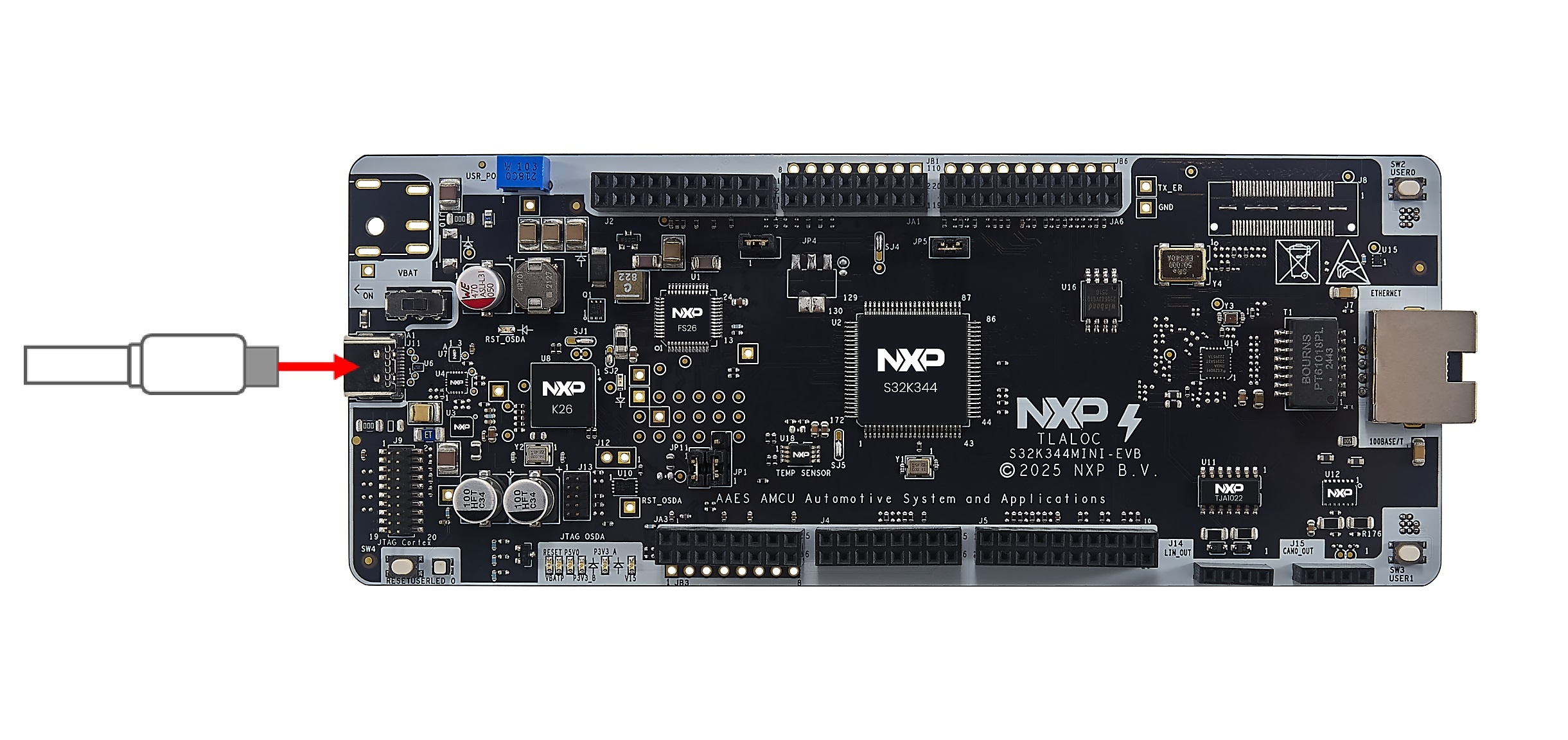
Ensure that the jumpers J19 and J20 are placed in the position 1 - 2 in order to power supply via the USB-C connector (J9).
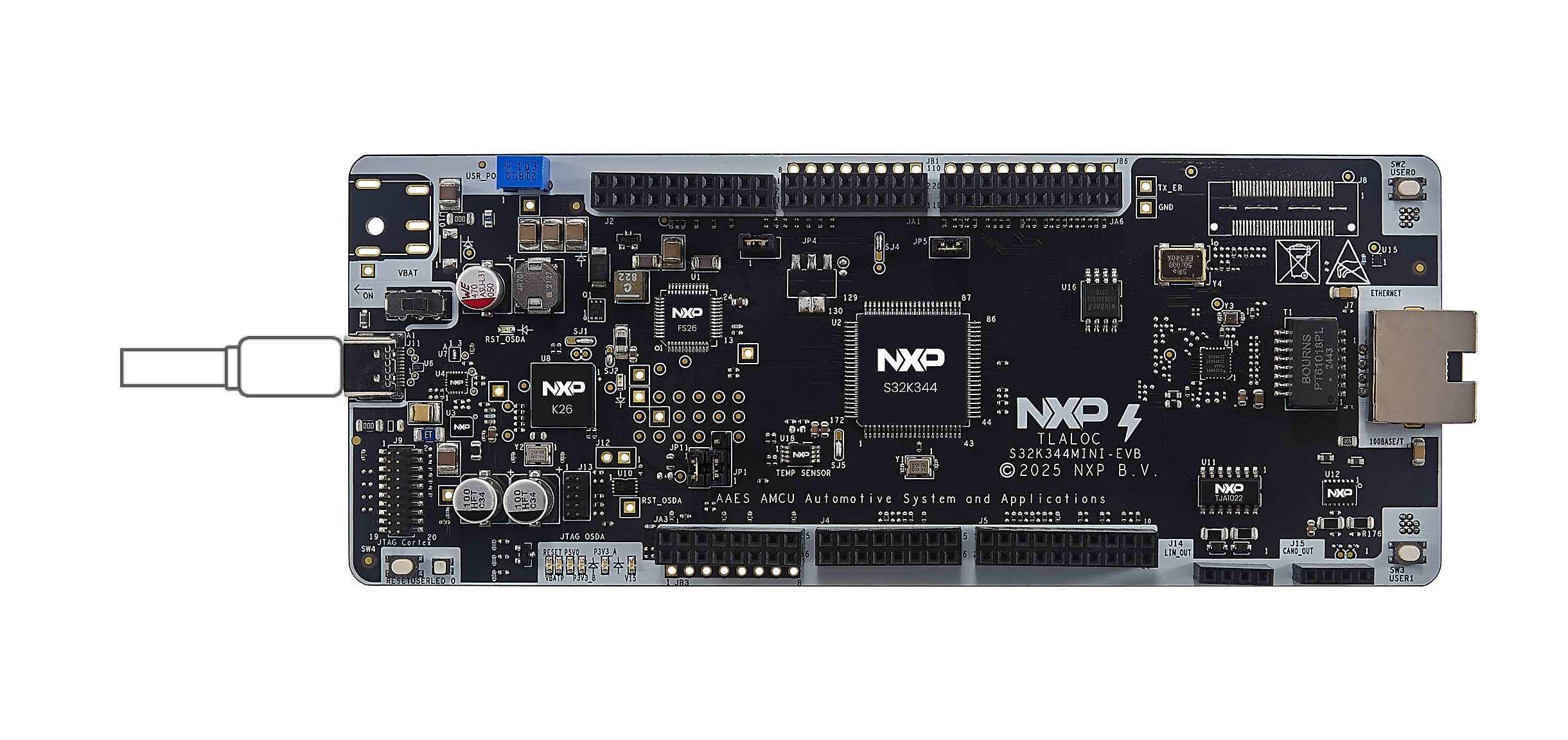
Plug in the USB-C sire to the J9 connector.
Something went wrong! Please try again.
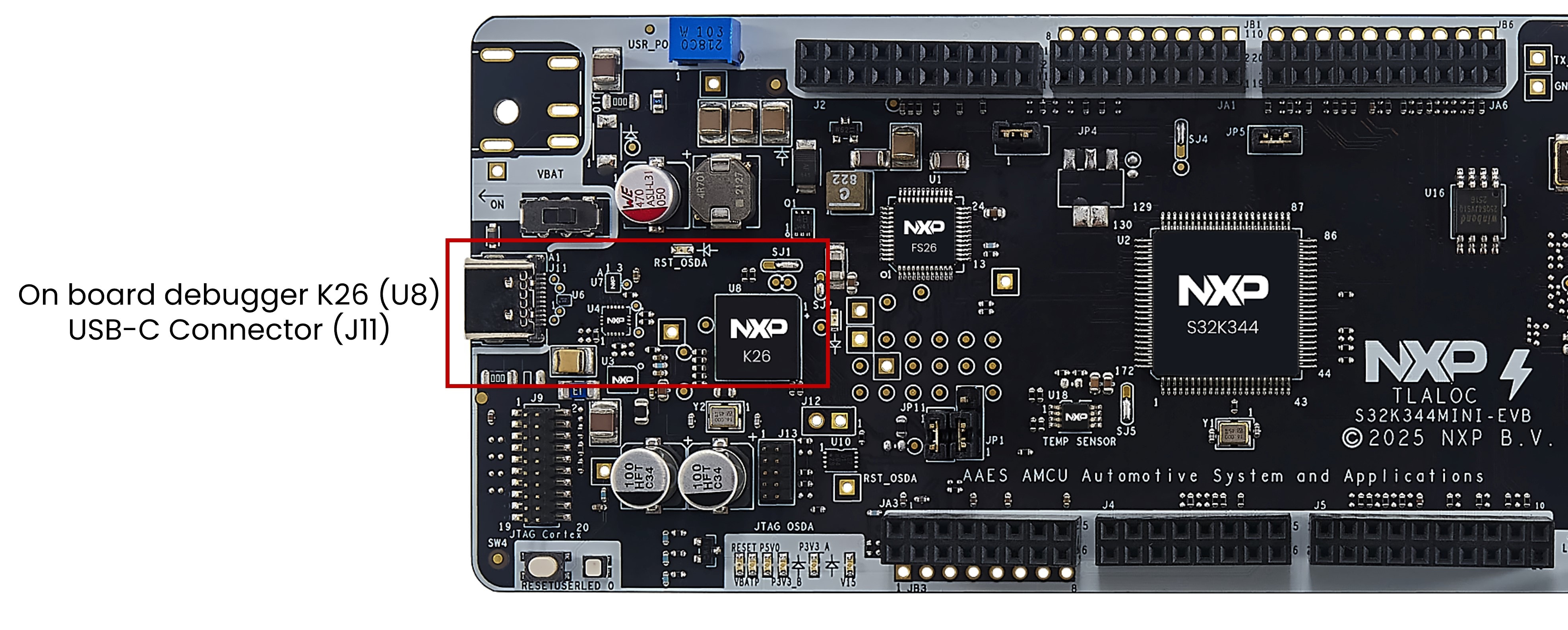
Connect a USB-C cable to the J9 connector to debug via the on-board S32K3 debugger.
Something went wrong! Please try again.
Now let's take your S32K344MINI-EVB Evaluation Board for a test drive.
Open S32DS and from the menu, go to: File → New → S32DS Project from Example. Select one of RTD example codes. You may choose between examples with high-level application programming interface (API) or with low-level API. For example: Port_example_K312.
Something went wrong! Please try again.
Double-click on the .mex project file.
Please ensure that you configure the appropriate project and click on "Update Code" button for generating configuration files.
Something went wrong! Please try again.
Return back to the C/C++ perspective.
Refer to the Debug Configuration menu and select one of the predefined debug configurations for building and uploading software into the MCU.
Note: If you don't use the default on-board debugger, edit the debugger tab for your setup.
The S32DS will switch into debug perspective where you may let the code run.
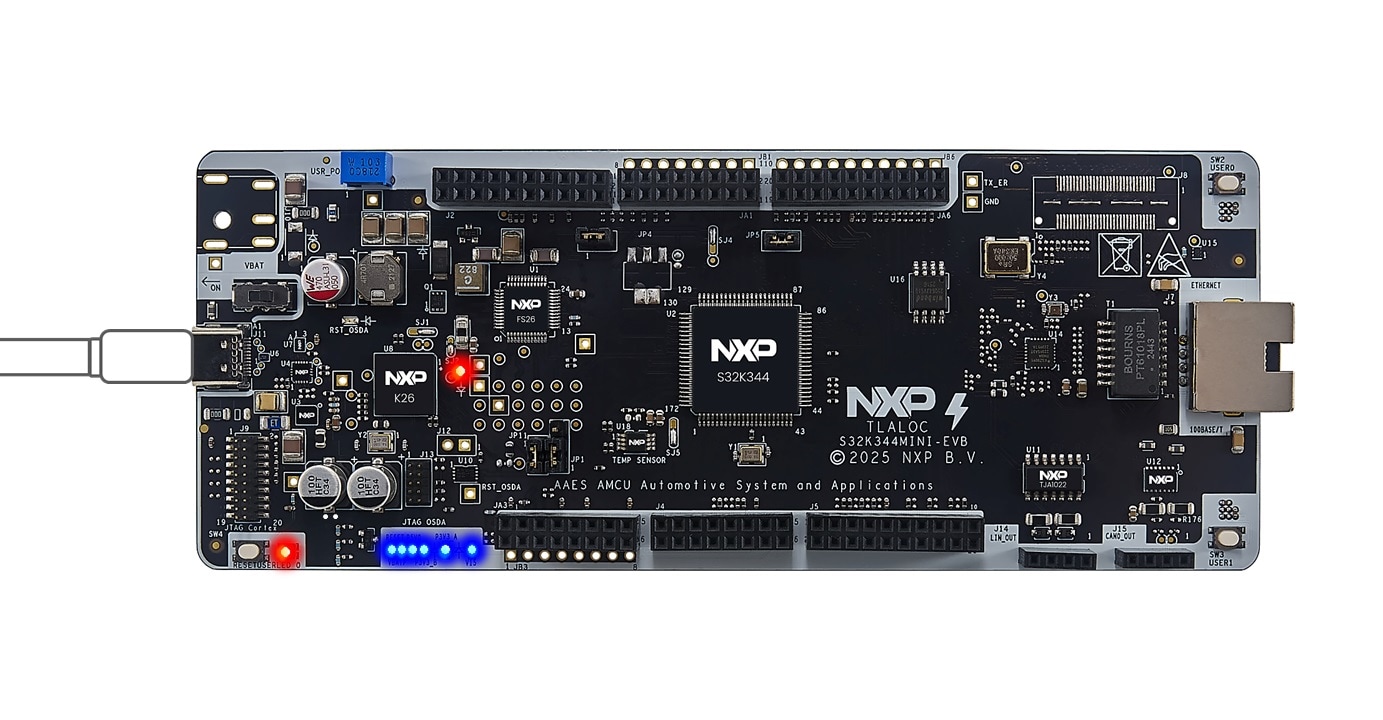
The red LED will now blink for approximately 10 seconds.
Something went wrong! Please try again.
Connect with other engineers and get expert advice on designing with the S32K344MINI-EVB Evaluation Board using our community sites.