KW47-LOCのスタート・ガイド
サインイン 進行状況を保存するには アカウントをお持ちでない方 アカウントを作成する。
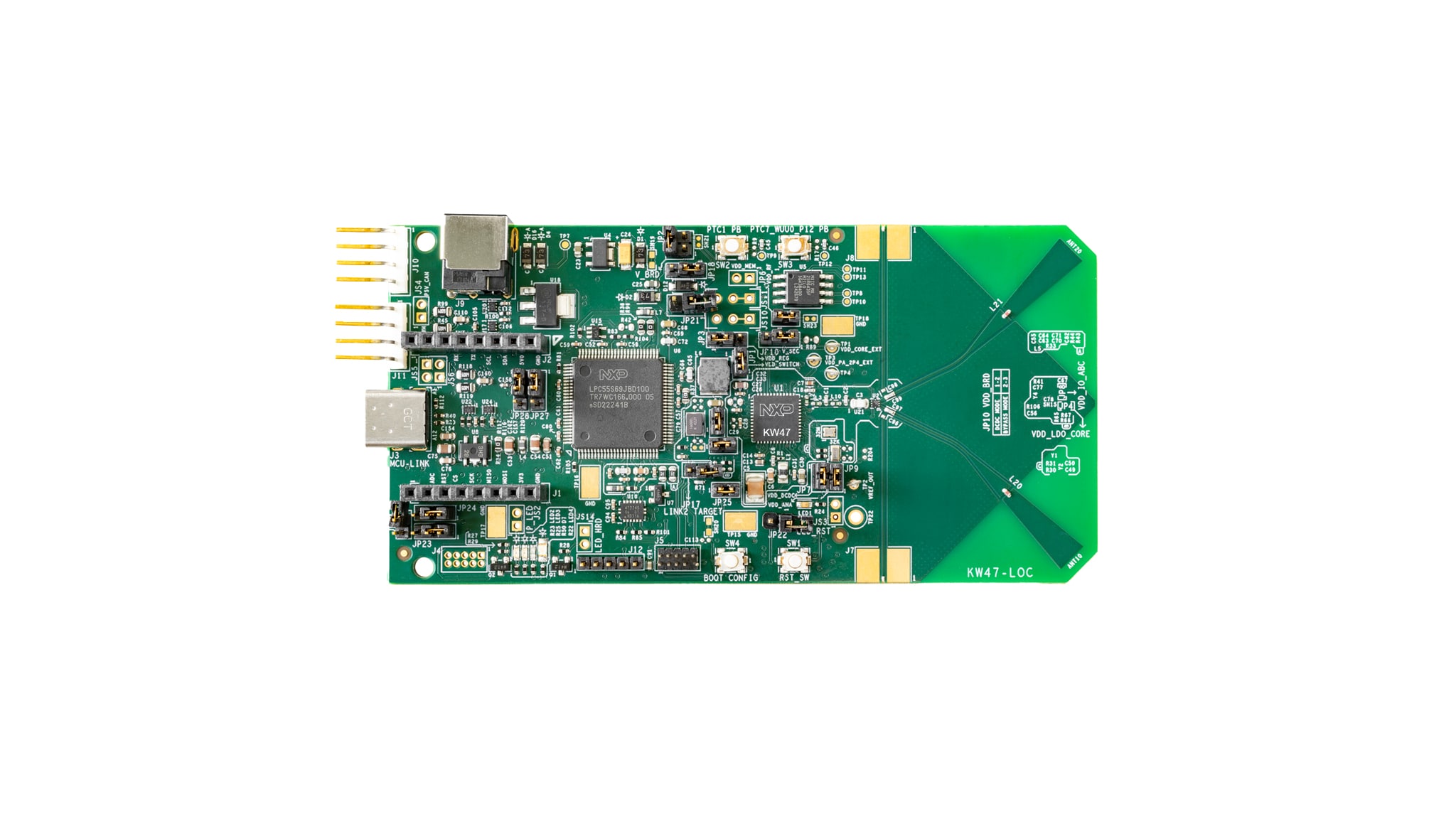
お客様の KW47 Bluetoothチャネル・サウンディングMCU用位置特定ボード
1. 接続
このビデオでは、このスタート・ガイドで学べる内容の概要について簡単に説明しています。
1.1 ボードの概要
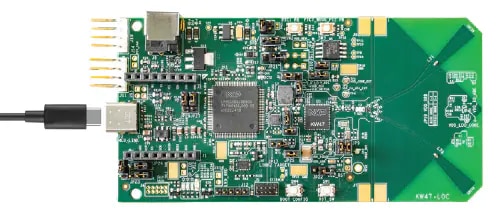
KW47-LOCボードには、ワイヤレス位置特定のデモが事前にプログラム済みです。これは、開梱したデバイスが正常に動作することをその場で検証するための動作確認用に使用できます。
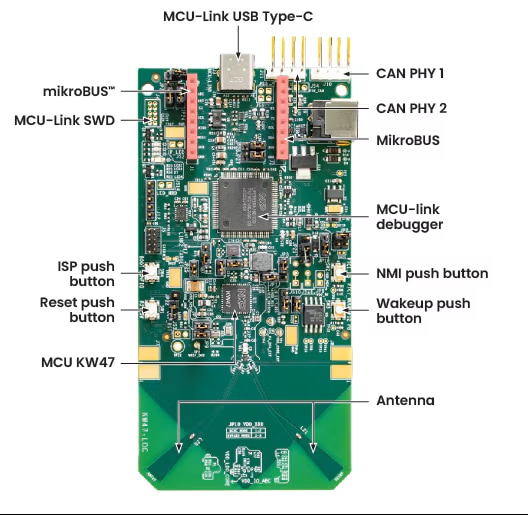
1.2 ボードの接続
このステップでは、2つのKW47-LOCボードが必要になります。
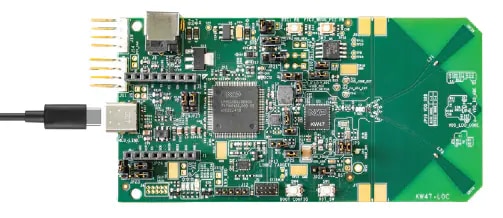
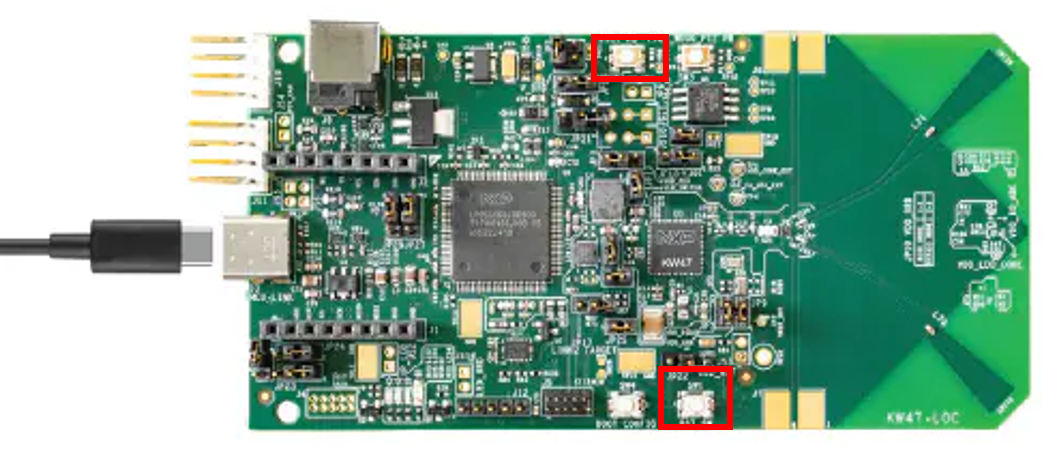
- USB Type-Cケーブルをコネクタ
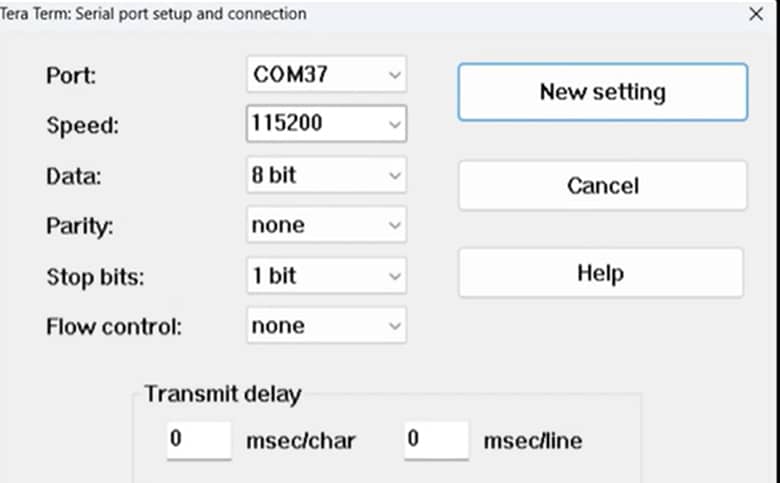
J3からホスト・コンピュータまたは電源に接続して、各ボードの電源を入れ、デモ・プログラムを実行します。この時点で、両方のボードで電源LEDが緑色に点灯するはずです。 - 任意のシリアル・ターミナルの2つのインスタンスを開き、以下の構成を使用して両方のボードを接続します。ここでは例としてTera Termが使用されていますが、任意のシリアル・インターフェースを使用できます
- いずれかのボードで、リセット・ボタンを押し続けながらSW2ボタンを長押しし、リセット・ボタンを離してから、SW2ボタンを離します
- 両方のボードが互いのワイヤレス位置測位セッションを実行し、その結果がシリアル・ターミナルに表示されるはずです
2. ソフトウェアの入手
2.1 MCUXpressoインストーラ(推奨)
NXPマイクロコントローラ・ユニット (MCU) の開発では、MCUXpressoインストーラを出発点とすることをお勧めします。このインストーラは、迅速な起動と実行に必要なすべての必須ツールとコンポーネントを統合した、単一の合理化されたインストール・プロセスを提供します。Visual Studio (VS) Codeを使用している場合や、GNUコンパイラ・コレクション (GCC) のコマンド・ラインから作業する場合、またはIARやArm (Keil) といったパートナーの統合開発環境 (IDE) を使用する場合にも、このインストーラは必要なコンポーネントのセットアップに役立ちます。このリソースを使用して、NXP製品で使用できる他のツールを見つけることもできます。
このインストーラは、複数のパッケージを手動でダウンロードして構成しなくてもすぐに使用できる環境を求めている開発者にとって最適です。以下のオペレーティング・システム用のインストーラを提供しています。
- インストーラの実行:ダウンロードした「MCUXpressoインストーラ」ファイルをダブルクリックして、インストール・ウィザードを起動します。
- 「コンポーネント」の選択:コンポーネント選択画面で、インストールまたは更新する機能を選択します。いくつかのコンポーネントが既にインストール済みの場合には、最新のものおよび更新が利用可能なものがウィザードに表示されます。このガイドにおいて推奨される最小限のコンポーネントは、MCUXpresso SDK Developer、ARM GNUツールチェーン、リンク・サーバ、およびMCUXpresso Config Toolsです。
- インストールおよびセットアップの完了:[Install(インストール)]をクリックしてプロセスを開始します。インストールが完了したら、MCUXpressoインストーラのウィンドウを閉じて終了できます
MCUXpressoインストーラは、組込み開発環境のセットアップを簡素化し、インストールにかかる時間を短縮します。MCUXpressoインストーラの詳細については、こちらを参照してください。
2.2 MCUXpresso for VS Code
MCUXpresso for VS Codeは、Arm® Cortex®-MをベースにしたNXP MCUをサポートしています。開発者は、MCUXpresso for VS Codeを使用することで、Zephy、Matter、またはMCUXpressoソフトウェア開発キット (SDK) のプロジェクトに柔軟に取り組むことができます。このVS Code拡張機能は、インストール済みのSDKリポジトリ、利用可能なデバッグ・プローブ、ユーザー・プロジェクト、リンクなどの関連情報を構造化することで、作業をスムーズに開始できるようにします。
- VS Codeを開く:システムでVS Codeを起動します。VS Codeは、MCUXpresso SDK DeveloperにあるMCUXpressoインストーラを使用して自動的にインストールされます
- 拡張機能マーケットプレイスに移動する:左側のサイドバーにある拡張機能アイコンをクリックします(またはCtrl+Shift+Xを押します)
- 「MCUXpresso」を検索する:検索バーに「MCUXpresso」と入力して、NXPの公式拡張機能を見つけます
- 拡張機能をインストールする:[Install(インストール)]をクリックします。インストールした後、画面の指示に従って必要な場合はVS Codeを再起動します
MCUXpresso SDK、Zephyr、およびMatterプロジェクトでの作業を簡素化する方法を探りましょう。詳細については、MCUXpresso Extension for VS Codeをご覧ください
2.3 MCUXpresso SDK
MCUXpresso SDKは、MCUXpresso for VS Codeと互換性があり、MCUXpresso IDE、IAR Embedded Workbench、Keilマイクロコントローラ開発キット (MDK)、GCC(CMakeとKconfigを使用)のそれぞれのサンプル・プロジェクトもサポートしています。さらに、オプションの統合リアルタイム・オペレーティング・システム (RTOS) を備えた本番環境グレードのソフトウェアに加え、支援ソフトウェア・テクノロジ(スタックおよびミドルウェア)やリファレンス・ソフトウェアなども含まれています。カスタムのWestマニフェストを使用することで、パートナーのミドルウェアとソフトウェアも統合できます。
MCUXpressoインストーラのMCUXpresso SDK Developerコンポーネントは、必要なすべての依存関係をダウンロードします。
NXPのVS Code用拡張機能を使用することで、以下の4つのソースからソフトウェア・リポジトリを追加できます。
- リモートGit URL – サポートされているすべての製品を含む、メイン・リポジトリをダウンロードします
- リモート・アーカイブ・フォルダ – 選択されている開発ボード用のアーカイブ・パッケージをダウンロードします
- ローカルGitリポジトリ – PCに既にダウンロードされている既存のローカルGitリポジトリを使用します
- ローカル・アーカイブ・フォルダ – SDK Builderから既にダウンロードされているアーカイブ・パッケージを使用します
このセクションでは、リモート・アーカイブ・オプションを使用してMCUXpresso SDKをインポートする方法について説明します。
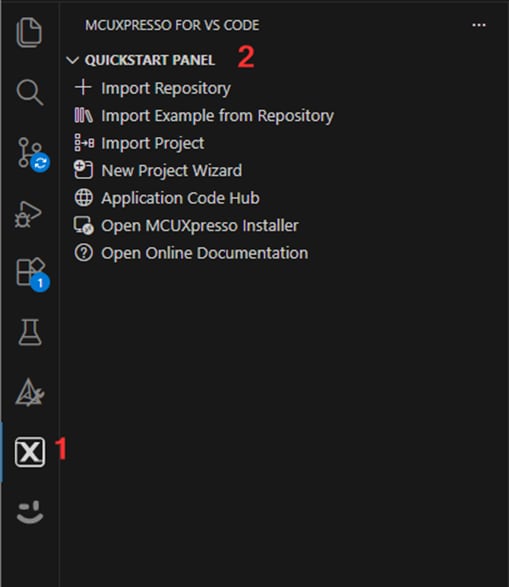
- MCUXpresso拡張機能を開きます。VS CodeのMCUXpressoアイコンをクリックします
- インポートを開始します。[QUICKSTART PANEL(クイックスタート・パネル)]タブに移動し、[Import Repository(リポジトリのインポート)]をクリックします。新しいインポート・ウィンドウが表示されます
- リモート・アーカイブ・ソースを選択します。SDKファイルのソースとして、[Remote Archive(リモート・アーカイブ)]を選択します
- パッケージとバージョンを選択します。使用する開発ボードとSDKのバージョンを選択します。
- 名前と保存先フォルダを設定します。SDKを保存するフォルダを選択し(例:「C:\SDK」)、SDKの名前を入力します(例:「mcuxsdk」)
- インポートして待機します。[Import(インポート)]をクリックし、プロセスが完了するまで待ちます
MCUXpresso SDK、パートナーのミドルウェア、および柔軟なリポジトリ・オプションを使用するための方法をご覧ください。
2.4 MCUXpresso Config Tools
MCUXpresso Config Toolsは、ピン、クロック、ペリフェラル、信頼できる実行環境 (TEE)/構成ツールを備えた統合スイートであり、カスタム・ボード・サポート用の初期化Cコードを生成するために使用できます。MCUXpresso for VS Codeの一部として統合されており、IARやKeilなどの別のIDEを使用する場合は独立したツールとしても使用できます。
上述したMCUXpressoインストーラを使用し、以下の手順でインストールします。
- MCUXpresso拡張機能を開きます。VS Codeで、左側のアクティビティ・バーにあるMCUXpressoアイコンをクリックします
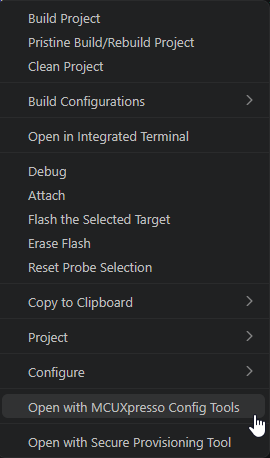
- Config Toolsを起動します。[Project(プロジェクト)]タブで、プロジェクトを選択して右クリックし、[Open Config Tools(Config Toolsを開く)]をクリックします。
MCUXpresso Config Toolsを使用して、ピン、クロック、ペリフェラル、および信頼できる実行環境(Trusted Execution Environment:TEE)を構成することができます。Config Toolsの詳細については、こちらをご覧ください
2.5 MCUXpressoセキュア・プロビジョニング・ツール
NXPは、MCUデバイスでのセキュアなプログラミングとデバイス・プロビジョニングのための2つの補完ツールを提供しています。以下に示すように、これらはいずれも開発と生産のワークフローに完全に対応しています。
- セキュア・プロビジョニングSECグラフィカル・ユーザー・インターフェース (GUI) ツール:セキュアなプログラミングおよびプロビジョニングのためのユーザー・フレンドリーなグラフィカル・ツールで、開発と量産のどちらにも最適です。GUIは、MCUXpressoインストーラを使用してインストールできます。わずか6回のクリックでセキュアなイメージを作成する方法をご覧ください
- セキュア・プロビジョニング・ソフトウェア開発キット (SPSDK) コマンドライン・インターフェース (CLI):自動化および統合のためのオープンソースのコマンドライン・ツールキットで、開発と生産のワークフローに最適です
SECツールおよびSPSDKを開発環境や生産環境に取り入れる方法をご紹介します。詳細については、MCUXpressoセキュア・ツールをご覧ください
2.6 代替ツール
新規設計にはMCUXpresso for VS Codeをお勧めします。
別のツールチェーンを使用したい場合は?
適切なツールを選ぶには、MCUXpressoスイートのソフトウェアとツールをご覧ください。
MCUXpresso SDKは、MCUXpresso IDE、IAR、Keil、コマンドラインGCCなど、他のツールをサポートしています。
3. ビルドと実行
3.1 MCUXpresso for VS Code IDEを使用したアプリケーションのビルドとフラッシュ
次の手順では、MCUXpresso for VS Code IDEを使用したwireless_uartデモ・アプリケーションについて説明します。開始する前に、このガイドのセクション2.3「ソフトウェアの入手」の手順に記載されているリモート・アーカイブSDKをダウンロードする必要があります。
使用しているアプリケーションのSDKバージョンに対応した狭帯域ユニット (NBU) イメージを使用する必要がある点にご注意ください。つまり、SDKをダウンロードする場合は、ワイヤレスSDKサンプルをロードする前に、「ワイヤレス・サンプルのNBUのアップデート」ガイドに従ってNBUイメージをアップデートします。
- クイックスタート・パネルを開く:VS CodeのMCUXpressoアイコンをクリックし、[Quickstart Panel(クイックスタート・パネル)]タブを選択します
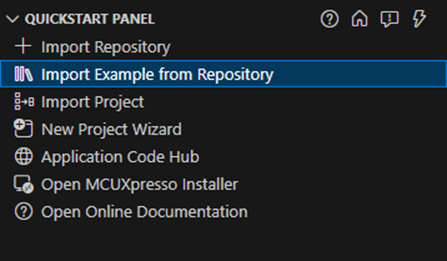
- サンプルをインポートする:[Import Example from Repository(リポジトリからサンプルをインポート)]をクリックします。
- アーカイブ・フォルダを選択する:[Repository(リポジトリ)]のドロップダウン・リストから、ダウンロード済みのアーカイブ・フォルダ「KW47-LOC」を選択します
- ボードを選択する:[Board(ボード)]のドロップダウン・リストから、「KW47-LOC」を選択します
- テンプレートを選択する:[Template(テンプレート)]のドロップダウン・リストから、「wireless_uart_bm」を選択します
- [Freestanding Project]を選択し、場所を選択する:PCでのプロジェクトの保存場所を選択します
- ツールチェーンを選択する:利用可能な最新のARM GNUツールチェーンを選択します
- インポートする:[Import(インポート)]をクリックします
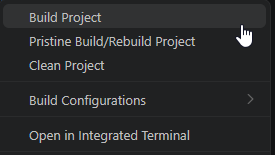
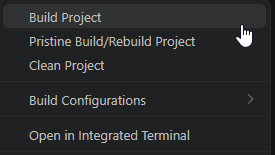
- プロジェクトをビルドする:[Projects(プロジェクト)]を展開し、プロジェクトを右クリックして[Build Project(プロジェクトのビルド)]を選択します(または[Build(ビルド)]アイコンをクリックします)
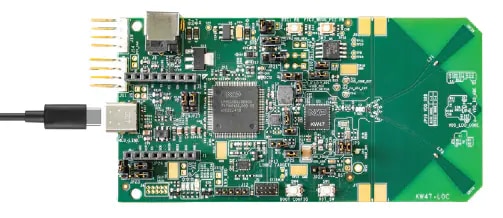
- ボードを接続する:micro-USBケーブルを使用して、MCU-LINKポート経由でボードをPCに接続します
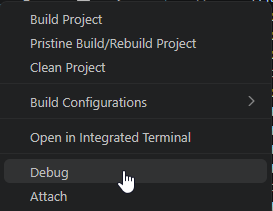
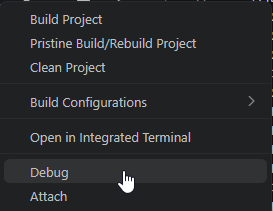
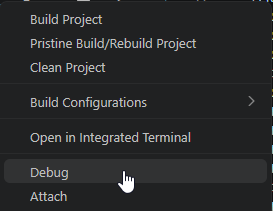
- プロジェクトをデバッグする:プロジェクトを右クリックして[Debug(デバッグ)]を選択し(または[Debug(デバッグ)]アイコンをクリックし)、アプリケーションをボードにダウンロードします
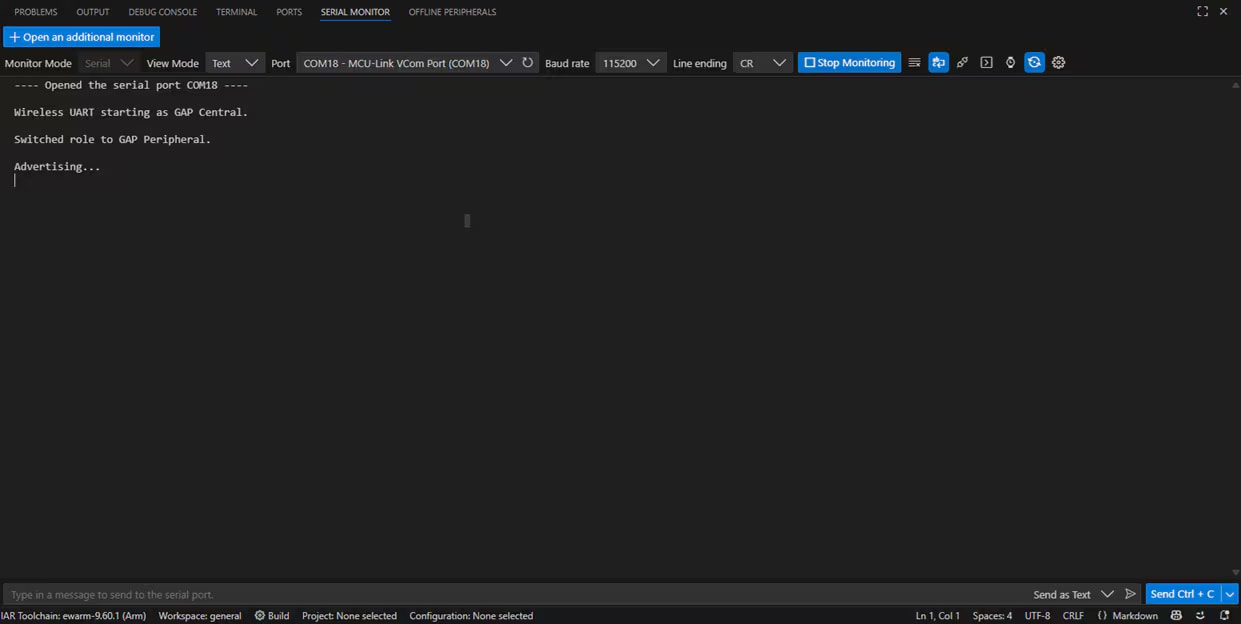
- シリアル・モニタを開く:VS Codeの[Serial Monitor(シリアル・モニタ)]を開き、[COMx - MCU-Link VCom Port(COMx - MCU-Link VComポート)]を選択し、ボーレートを「115200」に設定したら、[Start Monitoring(モニタリングの開始)]をクリックします
- 実行し、出力を確認する:[Continue(続行)]をクリックしてアプリケーションを実行し、[Serial Monitor(シリアル・モニタ)]で出力を確認します
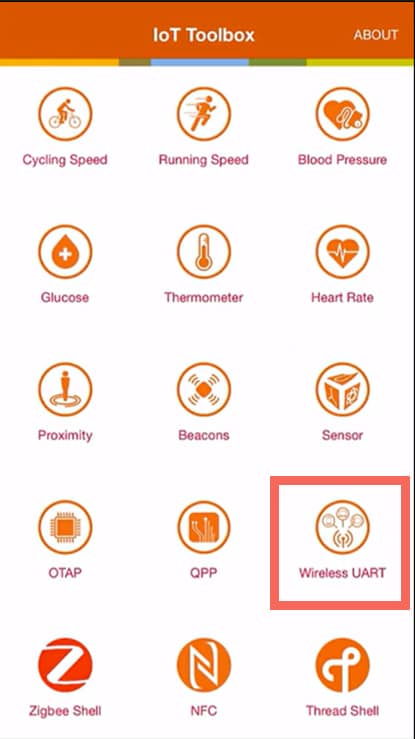
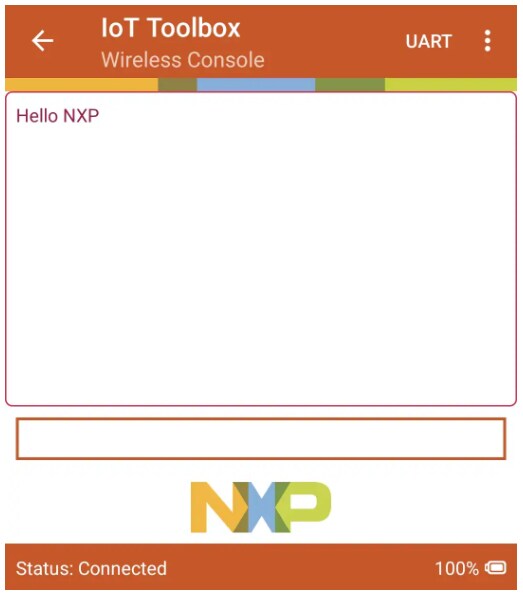
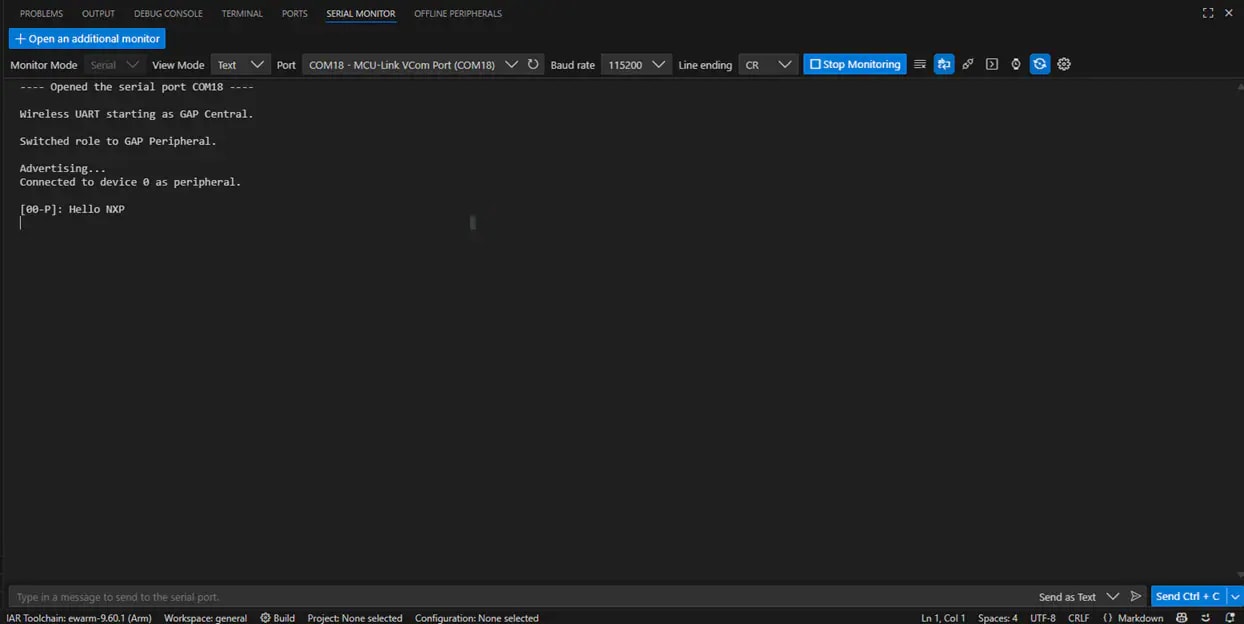
SW3ボタンを押して、BLEの役割をペリフェラルに切り替えます。次に、SW2を押して、BLEアドバタイジングを開始します。ターミナルに出力されるメッセージを確認してください - スマートフォンでNXP IoT Toolboxアプリを開きます。[Wireless UART(ワイヤレスUART)]アイコンを選択します。ワイヤレスUART対応デバイスを選択します。この時点で、IoT Toolboxアプリとシリアル・ターミナルの両方でデバイスのステータスが「Connected(接続済み)」と表示されているはずです
- NXPのIoT Toolboxアプリで任意のメッセージを入力し、送信します
- シリアル・ターミナルに以下のメッセージが表示されます
- シリアル・ターミナルに任意のメッセージを入力して送信し、NXPのIoT Toolboxアプリにそれが表示されることを確認することもできます







3.2 代替ツール:ビルドとフラッシュ
MCUXpresso IDEは、Arm® Cortex®-Mコアを搭載したNXPのレガシーMCUに対応する、Eclipseベースの使いやすい開発環境を提供します。開発環境は、MCUXpresso for VS Codeの方が好まれます。ただし、MCUXpresso IDEは引き続き、MCUXpresso IDEを必要とするレガシー製品およびSDKを完全にサポートしています。MCUXpresso IDEでサポートされていない製品については、SDKのドキュメントを参照してください。MCUXpresso IDEでアプリケーションをビルドし、フラッシュに書き込む方法を習得しましょう。
別のツールチェーンを使用する場合:
4. 作成
4.1 MCUXpresso for VS CodeでConfig Toolsを使用してSDKプロジェクトを変更する
次の手順では、汎用I/O (GPIO) の操作方法について説明します。この例では、GPIOをボード上で状態が切り替わるLEDとしてセットアップします。設定ツールを使用して、LEDの色が変わるようにピン出力を変更します。
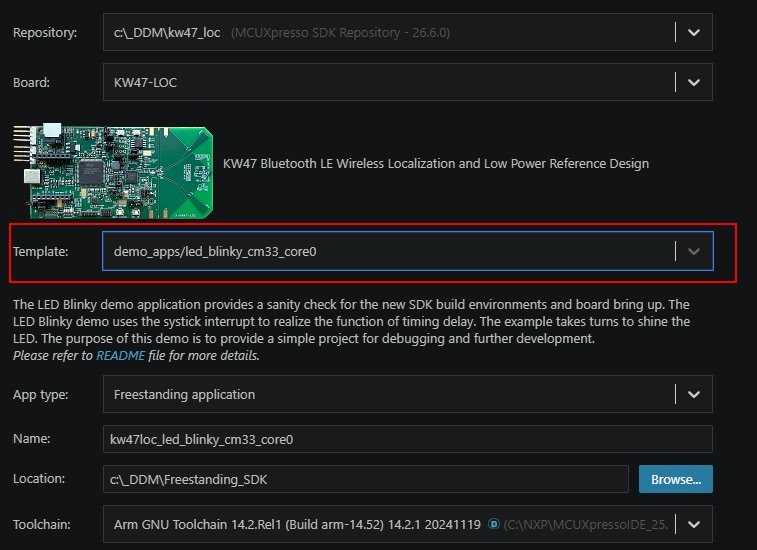
- テンプレートを選択する:前のセクションと同じ手順に従ってください。ただし、ここでは[Template(テンプレート)]のドロップダウン・リストから「demo_apps/led_blinky_cm33_core0」を選択します
- インポートする:[Import(インポート)]をクリックします
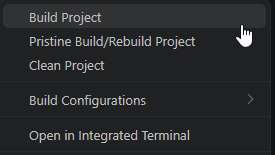
- プロジェクトをビルドする:[Projects(プロジェクト)]を展開したら、プロジェクトを右クリックして[Build Project(プロジェクトのビルド)]を選択します(または[Build(ビルド)]アイコンをクリックします)
- ボードを接続する:micro-USBケーブルを使用して、MCU-LINKポート経由でボードをPCに接続します
- プロジェクトをデバッグする:プロジェクトを右クリックして[Debug(デバッグ)]を選択し(または[Debug(デバッグ)]アイコンをクリックし)、アプリケーションをボードにダウンロードします
- 実行し、出力を確認する:[Continue(続行)]をクリックしてアプリケーションを実行します
- これにより、青色LEDが毎秒切り替わるはずです
- デバッグ・セッションを停止する:デバッグ・セッションの停止アイコンをクリックします
- MCUXpresso Config Toolsを開く:プロジェクトを右クリックし、[Open(開く)]を選択して、MCUXpresso Config Toolsを使用して開きます
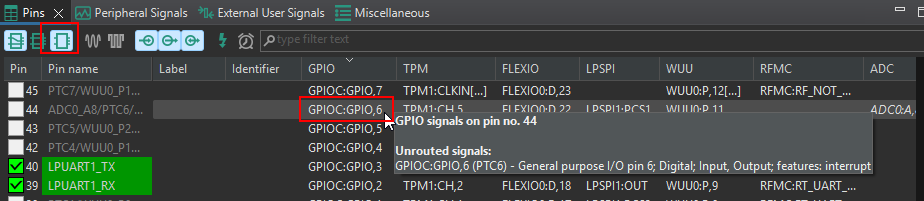
- ピンを絞り込む:[Pins(ピン)]ビューの[Show dedicated pins(専用ピンを表示)]および[Show not routed pins(ルーティングされていないピンを表示)]のチェックボックスのチェックを外し、ルーティングされているピンのみを表示させます(緑色にハイライト表示されます)
- 緑色LEDを有効にする:[Show not routed pins(ルーティングされていないピンを表示)]のチェックボックスにチェックを入れて、利用可能なオプションを表示させます。緑色LEDを有効にするには、
PTC6を検索し、GPIO列でGPIOC:GPIO,6を選択します - 次に、[Routing Details(ルーティング詳細)]ウィンドウで
GPIOピンを出力として、またLogical 1をGPIOの初期状態として構成します - 更新されたファイルをエクスポートする:[Update Code(コードの更新)]をクリックして変更を保存します。新しい
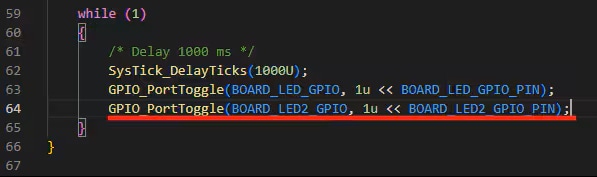
pin_mux.cおよびpin_mux.hファイルが生成され、元のファイルが上書きされます。 - アプリケーション・コードを更新する:次に、サンプルに緑色LEDを切り替えるためのコードを追加します。
led_blinky.cファイルを開き、以下の行を追加します。 - プロジェクトをビルドする:[Projects(プロジェクト)]を展開したら、プロジェクトを右クリックして[Build Project(プロジェクトのビルド)]を選択します(または[Build(ビルド)]アイコンをクリックします)
- プロジェクトをデバッグする:プロジェクトを右クリックして[Debug(デバッグ)]を選択し(または[Debug(デバッグ)]アイコンをクリックし)、アプリケーションをボードにダウンロードします
- 実行し、出力を確認する:[Continue(続行)]をクリックしてアプリケーションを実行し、緑色LEDと青色LEDが交互に点滅していることを確認します






4.2 代替ツールでConfig Toolsを使用してプロジェクトを変更する
MCUXpresso IDEは、Arm® Cortex®-Mコアを搭載したNXPのレガシーMCUに対応する、Eclipseベースの使いやすい開発環境を提供します。開発環境は、MCUXpresso for VS Codeの方が好まれます。ただし、MCUXpresso IDEは引き続き、MCUXpresso IDEを必要とするレガシー製品およびSDKを完全にサポートしています。MCUXpresso IDEでサポートされていない製品については、SDKのドキュメントを参照してください。MCUXpresso IDEでConfig Toolsを使用してプロジェクトに変更を加える方法をご覧ください。
別のツールチェーンを使用する場合:
IARおよびKeilでのデモも提供しています。
5. MCUXpresso開発者エクスペリエンス
以下の各セクションで、柔軟なプロトタイピングと開発のために提供されているエコシステムについてご覧ください。以下のビデオでは、FRDMプラットフォーム、フル機能の評価キット (EVK)、および拡張機能向けの互換シールドについて紹介しています。さらに、NXPのGitHubを通じて多数のアプリケーション・サンプルを提供するアプリケーション・コード・ハブ (ACH) ポータルについて詳しく説明します。
5.1 FRDM、EVK、シールド
NXPでは、迅速にプロトタイプを作成するためのプラットフォーム向けに、低コストのFRDMプラットフォームとフル機能のEVKの両方を提供しています。
FRDM開発ボードは、標準のフォーム・ファクタとヘッダ、MCU I/Oへの簡単なアクセス、オンボードMCU-Linkデバッガ、USB-Cケーブルを備えています。フル機能の評価キットには、I/Oおよびインターフェースへの拡張アクセス、Wi-Fi拡張機能のほか、追加のMCU-Link機能が含まれます。
互換性のあるClickボードやArduinoシールドも多数あります。Open CMSIS (Cortex® Microcontroller Software Interface Standard) パックでサポートされているものについては、ACHでサンプルが提供されている場合があります。ただし、I²C (Inter-Integrated Circuit)、シリアル・ペリフェラル・インターフェース (SPI)、UART (Universal Asynchronous Receiver/Transmitter) などのシリアル・インターフェースを介して使用することが容易ではない場合には、MCUXpresso SDKでドライバとサンプルを提供しています。
5.2 アプリケーション・コード・ハブ
ACHは、開発者がソフトウェアをすばやく見つけることができるインタラクティブなダッシュボードとして、NXPのMCUXpresso開発者エクスペリエンスをさらに向上させます。ACHを今すぐ調べて、この新しいインタラクティブなアプリケーション・コード・ハブの詳細やその利点について確認しておきましょう。
ACHからアクセス可能なソフトウェアはNXPのGitHubリポジトリに置かれているため、その場所に直接アクセスして簡単にクローンを作成することができます。
5.3 デモのご紹介
次のデモでは、モータ制御シールドと低コストLCDを備えた、FRDMプラットフォームを基盤とするシステムを使用して、ACHからプロジェクトをインポートする方法を示しています。評価ボードがこのシステムと異なる場合でも、以降の手順はサポート対象のすべてのプラットフォームで同じように実施できます。
5.4 FreeMASTERランタイム・デバッグ・ツール
FreeMASTERは、組込みソフトウェア・アプリケーションの実行時の設定および調整を可能にする、ユーザー・フレンドリーなリアルタイム・デバッグ・モニタおよびデータ可視化ツールです。このツールは、実行中のシステムでの変数の非割込み型監視をサポートするとともに、オシロスコープに似た画面、標準のウィジェット(ゲージやスライダなど)、またはテキスト形式で複数の変数を表示可能で、シンプルに使えるデータ・レコーダを実現できます。
MCUXpressoインストーラでは、簡単にダウンロードして更新できるFreeMASTERコンポーネントが提供されています。
システムをリアルタイムで最適化、チューニング、視覚化します。FreeMASTERの詳細については、こちらをご覧ください。
5.5 GUI Guider
GUI Guiderのドラッグアンドドロップ対応エディタを使用すると、ウィジェット、アニメーション、スタイルなどの多くの LVGL (Light and Versatile Graphics Library) 機能を簡単に利用して、必要最小限のコーディングまたはコーディングなしでGUIを作成できます。これは、オープンソースのLVGLを使用して高品質のディスプレイを迅速に開発できる、NXPのユーザー・フレンドリーなGUI開発ツールです。
MCUXpressoインストーラでは、簡単にダウンロードして更新できるGUI Guiderコンポーネントが提供されています。
コーディングの必要なしに、LVGLのウィジェット、アニメーション、スタイルを活用できます。GUI Guiderの詳細については、こちらをご覧ください