Cloud Testing 2
このドキュメントの内容
-
接続
-
ソフトウェアの入手
-
ビルドと実行
-
FRDM-KW38用アプリケーションの作成
サインイン 進行状況を保存するには アカウントをお持ちでない方 アカウントを作成する。

お客様の CLOUD-PROD-TSP1
1. 接続
Let's take your FRDM-KW38 for a test drive! ショート・ビデオで手順を視聴するか、以下に記載された詳細な手順を参考にして、作業を進めてください。
1.1 Get Started with the FRDM-KW38 Development Board
1.2 USBケーブルを接続する
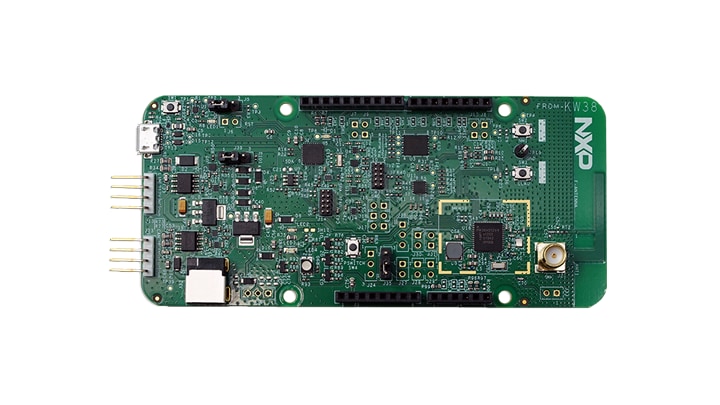
1.3 クイック・スタート・デモを実行する
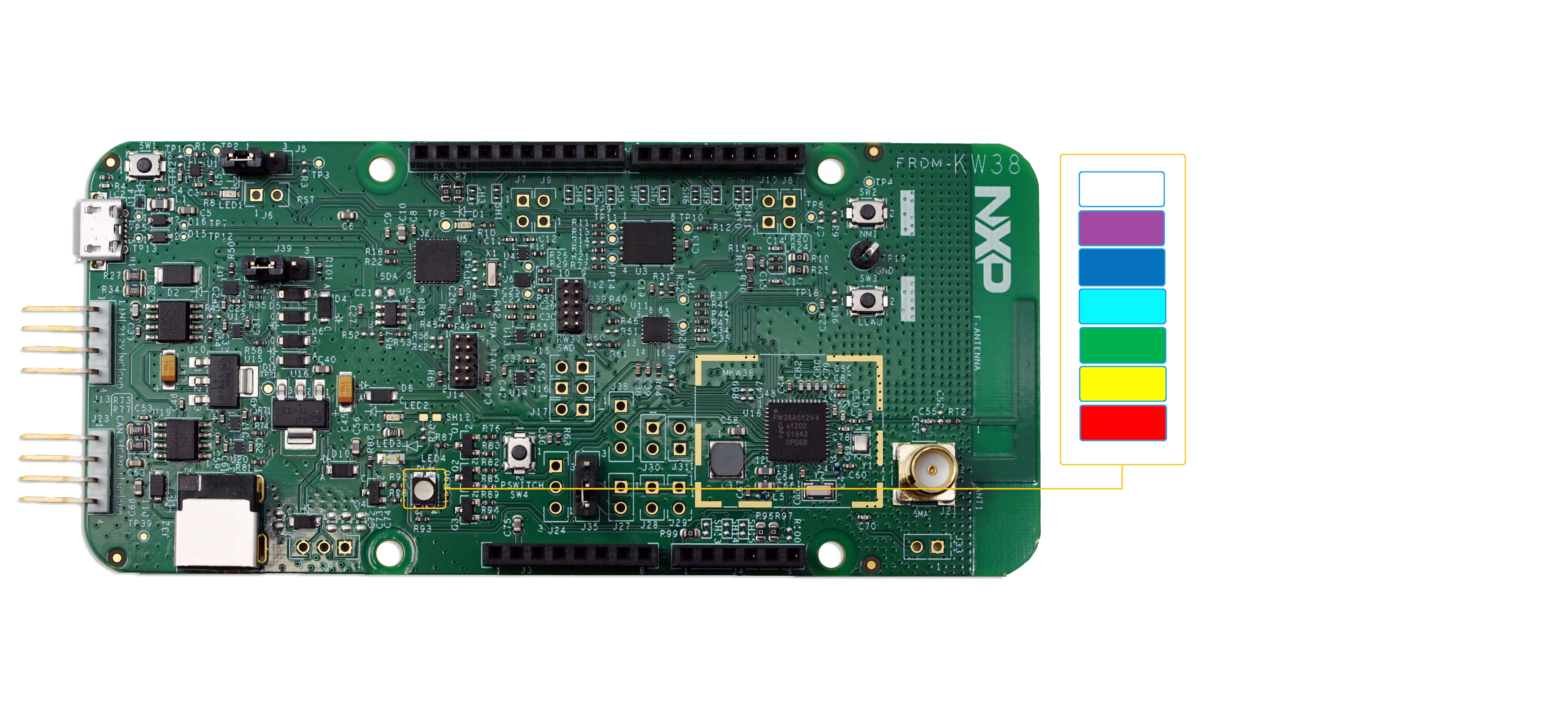
Your FRDM-KW38 comes loaded with a demo that flashes the multi-colored LEDs when you connect the board.
Bluetooth Low Energy (LE) Beacon
Note: Some unexpected behaviors have been observed recently with iOS system (It is not allowing all zeros address beaconing). New updated boards batches will come. So in the meantime, please follow those instructions to use the FRDM-KW38 beaconing FW with an iOS device:
- Get the SDK Beacon FW from
SDK_2.xxx\boards\frdmkw38\wireless_examples\bluetooth\beaconor, - Use and Android Handheld device
The Bluetooth LE Beacon application demonstrates the beacon functionality. ビーコンは、3つのAdvertisingチャネルで送信される接続不可能なAdvertisingパケットです。パケットには次のフィールドがあります。
- Company Identifier(会社の識別子)(2バイト):0x0025(Bluetooth SIGによって定義されたNXP ID)
- Beacon Identifier (1 byte): 0xBC (Allows identifying an NXP Beacon alongside with the Company Identifier)
- UUID(16バイト):ビーコン・センサの一意の識別子
- A(2バイト):ビーコン・アプリケーション・データ
- B(2バイト):ビーコン・アプリケーション・データ
- C(2バイト):ビーコン・アプリケーション・データ
- RSSI at 1 m (1 byte): Allows distance-based applications
By default, the UUID value is a random value based on the unique identifier of the board.
Application Usage
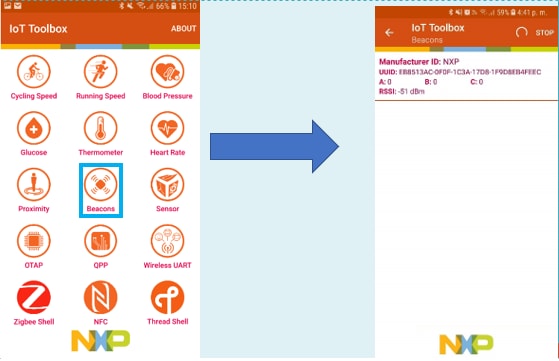
In order to see the beacons, please, download and install the NXP IoT Toolbox mobile application on a smartphone supporting Bluetooth LE.

Once the NXP IoT Toolbox is installed. Open the application. Then, open the "Beacons" demo and the FRDM-KW38 Beacon will be displayed.
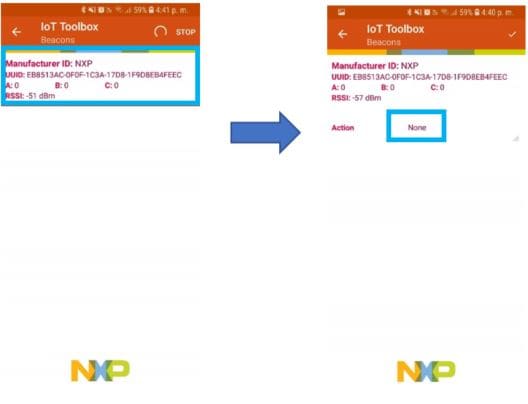
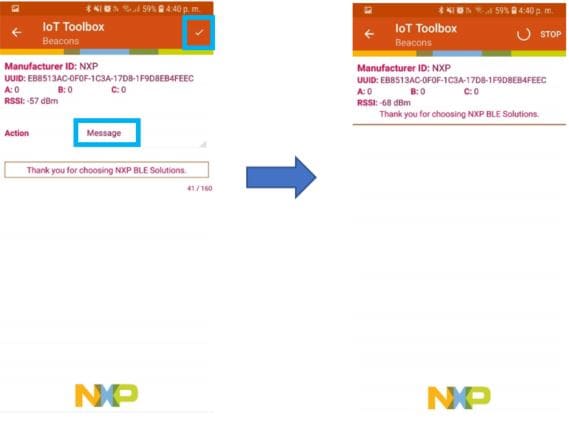
The IoT Toolbox can also perform actions once the beacon is identified, as an example, with this demo the IoT Toolbox can show a message when the beacon is detected. You can enable the action by performing the next steps:
- Click in the beacon shown by the IoT Toolbox
- In the "Action" panel change the None option to Message
- Select the message to display when beacon is found. By default, it shows "Thank you for choosing NXP BLE solutions"
- Click on the check mark located in the top right corner
- Now, once the beacon is found, it will also display the preconfigured message
Finally, user can also turn off or deactivate the beacons by holding the SW2 button for about 2-3 seconds in the FRDM-KW38. If the user wants to activate the beacons again, just press SW2 button.
2. ソフトウェアの入手
2.1 Installing Software for the FRDM-KW38
2.2 Download MCUXpresso SDK with Connectivity Software
MCUXpresso SDK for the FRDM-KW38 includes all the wireless connectivity stacks required to develop your solution using Generic FSK, and Bluetooth Low Energy.
Click below to download a preconfigured SDK release for the FRDM-KW38 that includes all the wireless connectivity stacks for the KW38.

You can also use the online SDK Builder to create a custom SDK package for the FRDM-KW38.
2.3 ツールチェーンをインストールする
NXPは、MCUXpresso IDEというツールチェーンを無償で提供しています。
別のツールチェーンを使用したい場合は?
問題ありません。MCUXpresso SDK connectivity stack software also supports IAR .

2.4 MCUXpresso Config Tools
MCUXpresso Config Toolsは、ユーザーがMCUXpresso SDKプロジェクトを新規に作成するための構成ツールの統合スイートであり、カスタム・ボード・サポート用の初期化Cコードを生成するためのピンとクロックのツールも備えています。

To learn more about the basic interactions between the tools while working with either an imported MCUXpresso SDK example project or creating a new project within the IDE, watch this three-part video series: Basic Application Development Using MCUXpresso IDE and MCUXpresso Config Tools.
2.5 PCを設定する
サンプル・アプリケーションの多くは、マイクロコントローラのUARTを介してデータを出力します。ボードの仮想COMポート用ドライバがインストールされているか必ず確認してください。ドライバ・インストーラを実行する際は、あらかじめボードをPCに接続してください。
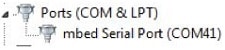
シリアル・ポート・ドライバをインストールした状態で、お好きなターミナル・アプリケーションを実行し、マイクロコントローラのUARTからのシリアル出力を確認します。ターミナルをボーレート115,200、8データ・ビット、パリティなし、1ストップ・ビットに設定します。To determine the port number of the FRDM-KW38's virtual COM port, open the device manager and look under the "Ports" group.
ターミナル・アプリケーションの使用方法がわからない場合は、Tera TermチュートリアルまたはPuTTYチュートリアルのいずれかのチュートリアルをお試しください。
Test of Save.
3. ビルドと実行
The FRDM-KW38 Wireless Connectivity software comes with a list of demo applications and driver examples ready to be compiled and run for each connectivity stack.
3.1 Gen FSK
Build and Run Connectivity Demos on the FRDM-KW38
3.2 Explore the Connectivity Example Code
Generic FSK
The KW38 Wireless Connectivity Software package comes with the Connectivity Test demo application for Generic FSK protocol. To see what's available, browse to the 'examples' folder: \boards\frdmkw38\wireless_examples\genfsk.
3.3 Build, Run and Debug Wireless Connectivity Examples
You probably want to build and debug a demo by yourself. Use the guide below to learn how to build and debug an example application from the Wireless Connectivity Stacks in the MCUXpresso IDE or IAR Embedded Workbench IDE.
IAR Embedded Workbench IDE
Generic FSK
ここでは以下の手順について説明します。
- Load and build the demo application in IAR Embedded Workbench
- Download and run the demo application
The example used below is for the Generic FSK Connectivity Test demo, but these steps can be applied to any of the Wireless Connectivity demo applications.
Load and build the application demo
- Navigate to the Connectivity Test IAR workspace located the next path
\boards\frdmkw38\wireless_examples\genfsk\connectivity_test\freertos\iar 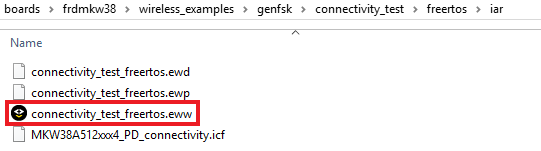
- After the workspace is open, select the project
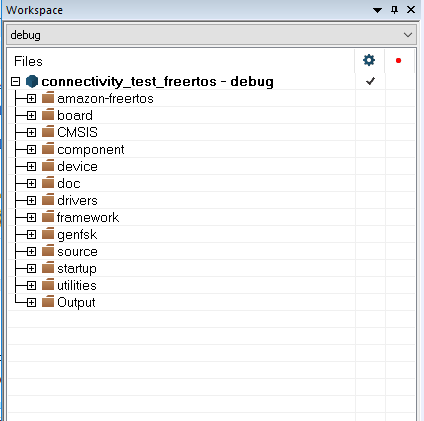
- Click the Make button to build the project

アプリケーション・デモをダウンロードして実行する
- Connect your FRDM-KW38 board to your PC
- Click on the Download and Debug button (green arrow located on the toolbar)

- Once the project has loaded, the debugger should stop at main(). ターミナル・エミュレータ・プログラムを開いて、FRDM-KW38 COMポートのセッションを開きます。次の設定値を用いてターミナルを設定します。
- ボーレート115,200
- パリティなし
- 8データ・ビット
- 1ストップ・ビット
- Click the Go button to resume operation

- The following output will be displayed in the serial terminal
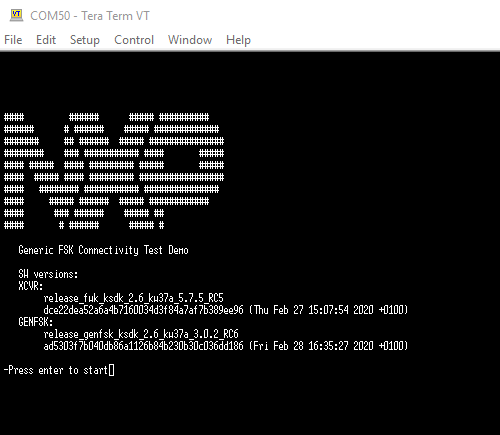 If you don't see this output, verify your terminal settings and connections.
 - Refer to
\docs\wireless\GENFSK\Generic FSK Link Layer Quick Start Guide.pdf
Running a demo using MCUXpresso IDE
Generic FSK
ここでは以下の手順について説明します。
- Load and build the demo application in MCUXpresso IDE
- Download and run the demo application
The example used below is for the Generic FSK Connectivity Test demo, but these steps can be applied to any of the Wireless Connectivity demo applications.
Load and build the application demo
- MCUXpresso IDEを開きます
- MCUXpresso IDEウィンドウ内のビューを[Installed SDKs(インストール済みSDK)]に切り替えます
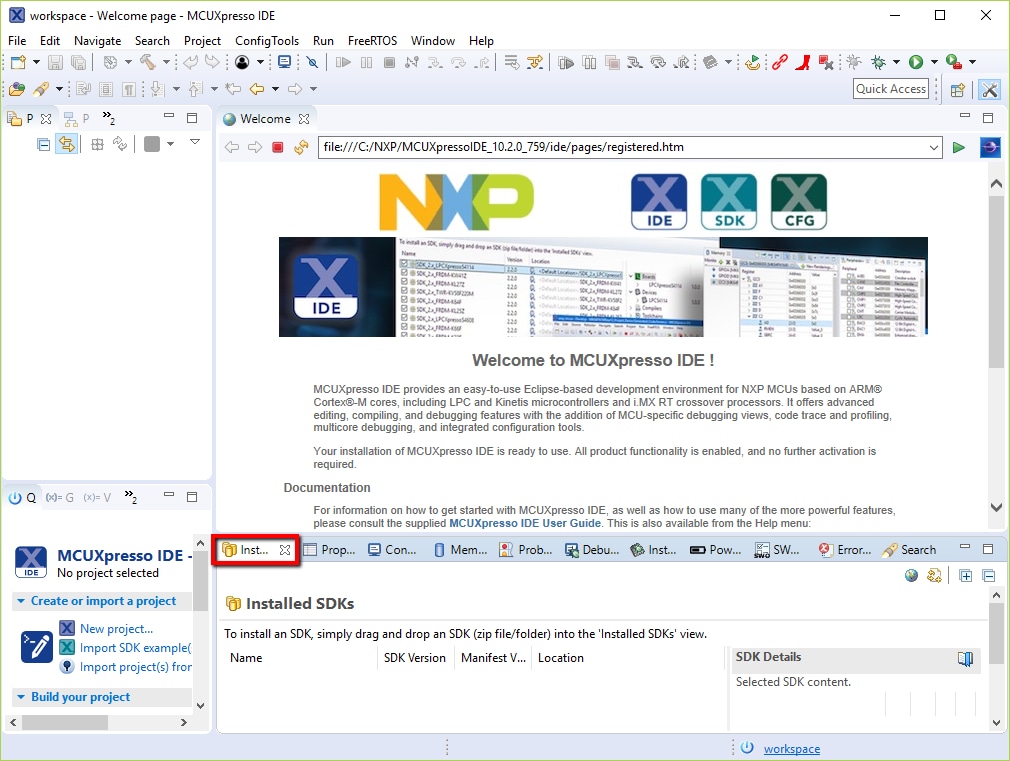
- Open Windows Explorer, and drag and drop the FRDM-KW38 SDK (unzipped) file into the "Installed SDKs" view
- 次のポップアップが表示されます。Click on OK to continue the import:
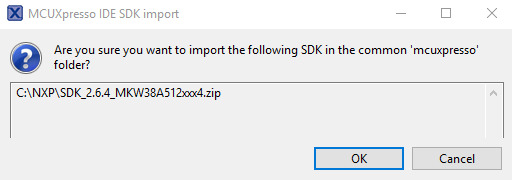
- インストールされたSDKは、以下に示すように[Installed SDKs(インストール済みSDK)]ビューに表示されます。
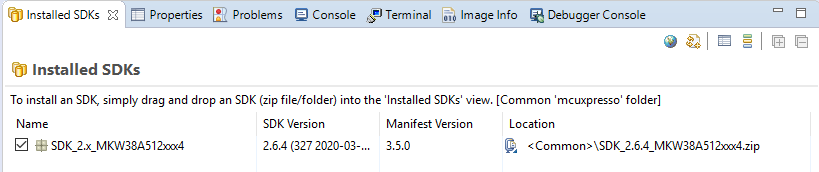
サンプル・アプリケーションのビルド
The following steps will guide you through opening the Generic FSK example.
- 左下隅にある「Quickstart Panel(クイックスタート・パネル)」を確認します
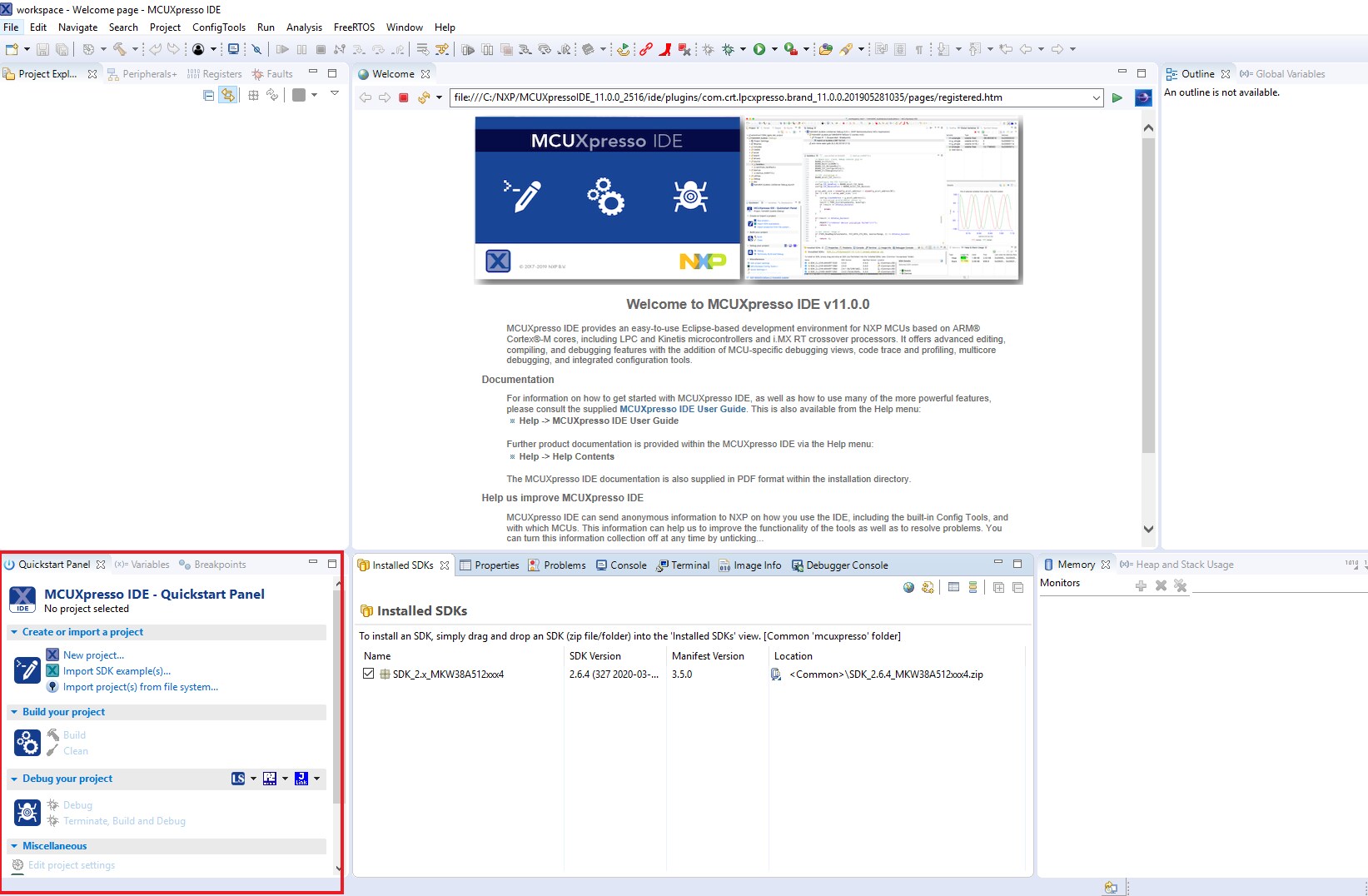
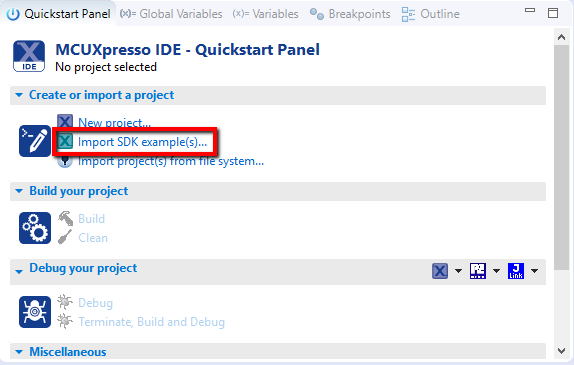
- Then click on Import SDK example(s)
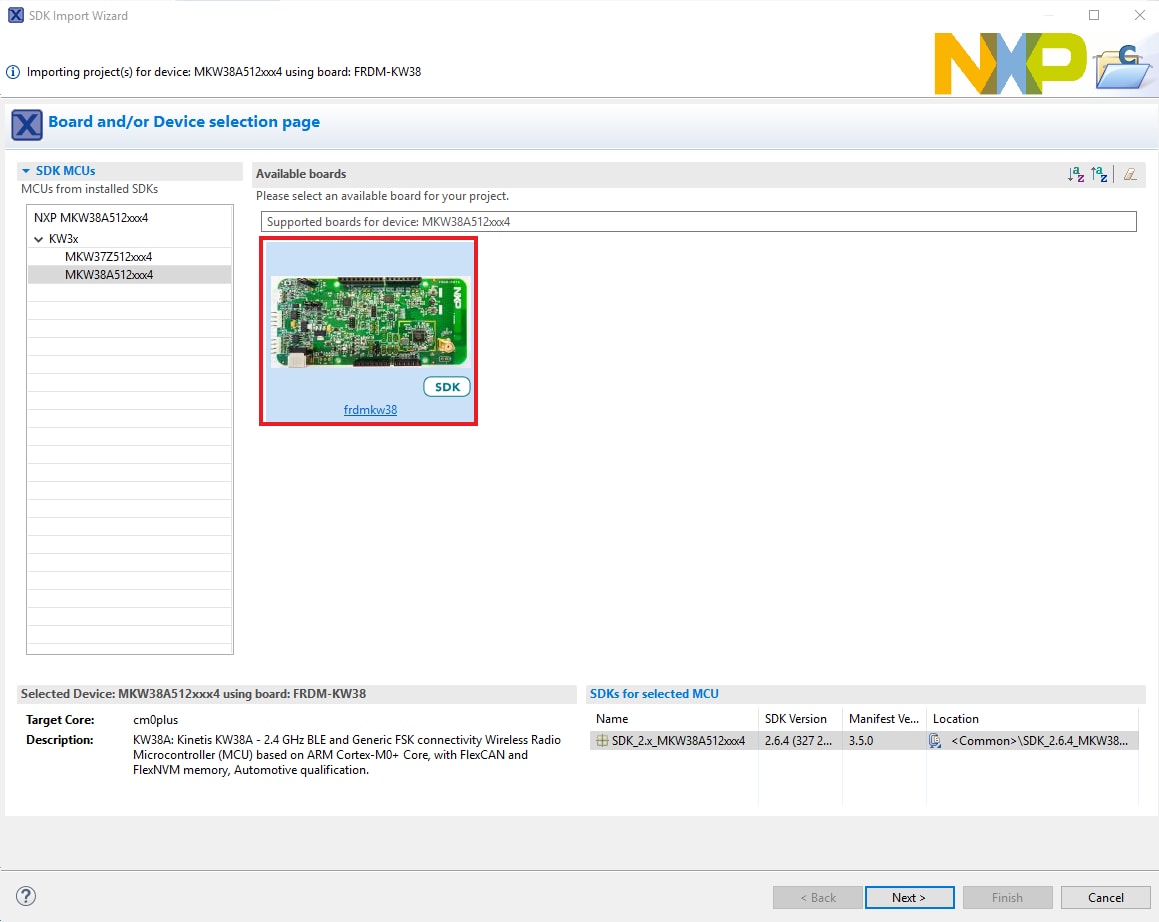
- Click on the frdmkw38 board to select that you want to import an example that can run on that board, and then click on Next
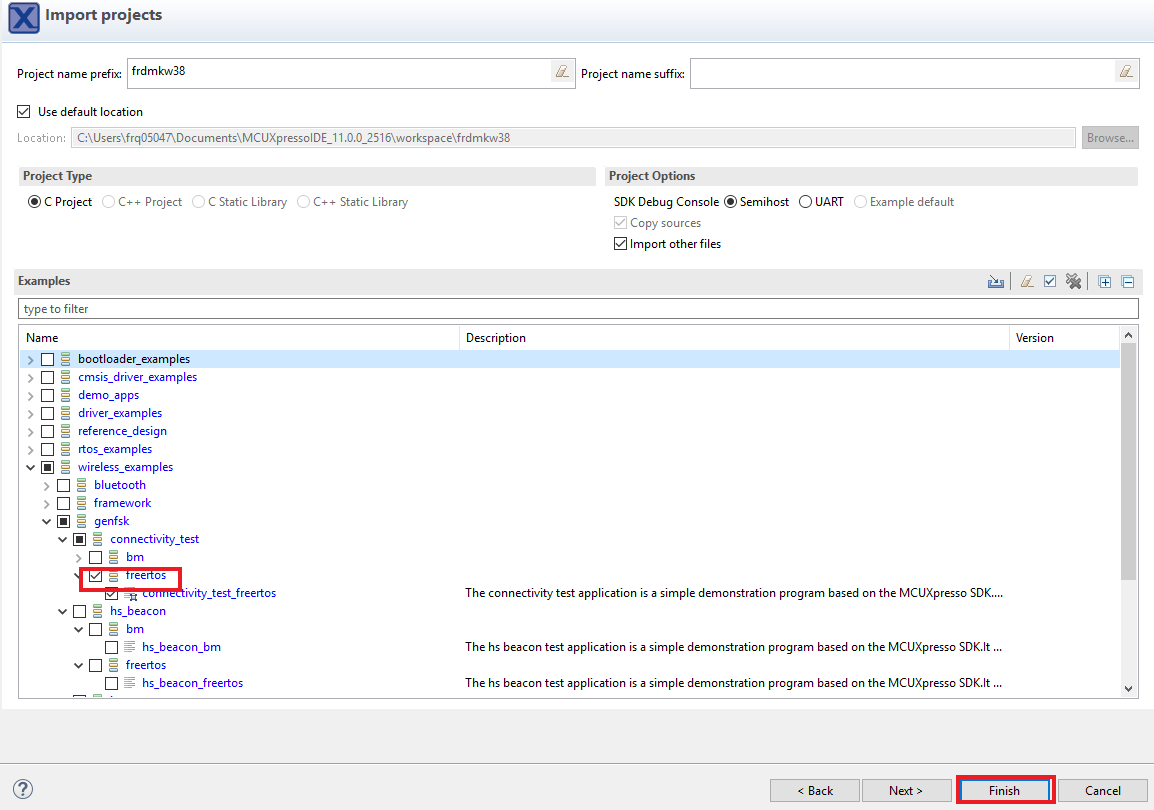
- In the search text box, type "connectivity_test" to filter the example projects. Use the arrow button to expand the list and locate the "connectivity_test" project (wireless_examples → genfsk → connectivity_test). Then, select the freertos version of the project and click "Finish"
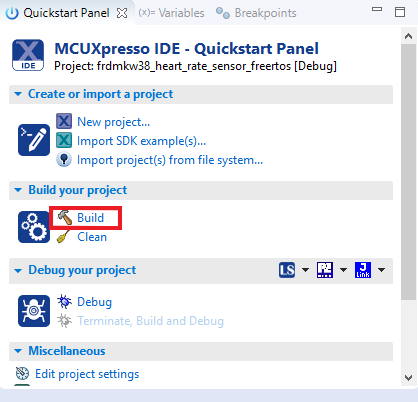
- Now build the project by clicking on the project name and then in the Quickstart Panel click on Build
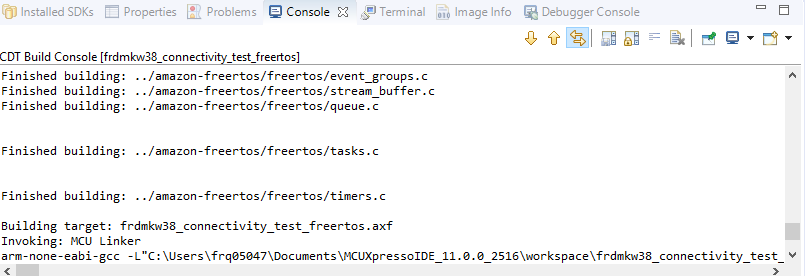
- ビルドの進捗状況は[Console(コンソール)]タブで確認できます
- プロジェクトがコンパイルされたので、ボードにフラッシュしてプロジェクトを実行できます
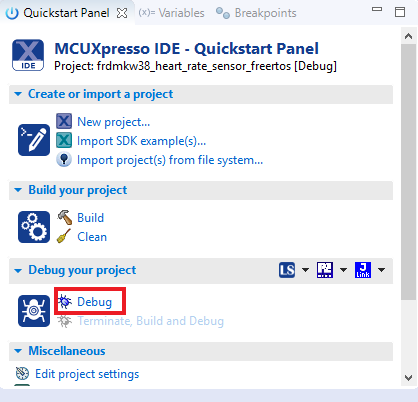
- Make sure the FRDM-KW38 board is plugged in and in the Quickstart Panel click on Debug
- MCUXpresso IDE will probe for connected boards and should find the DAPLink CMSIS-DAP debug probe that is part of the integrated OpenSDA circuit on the FRDM-KW38. Click on OK to continue
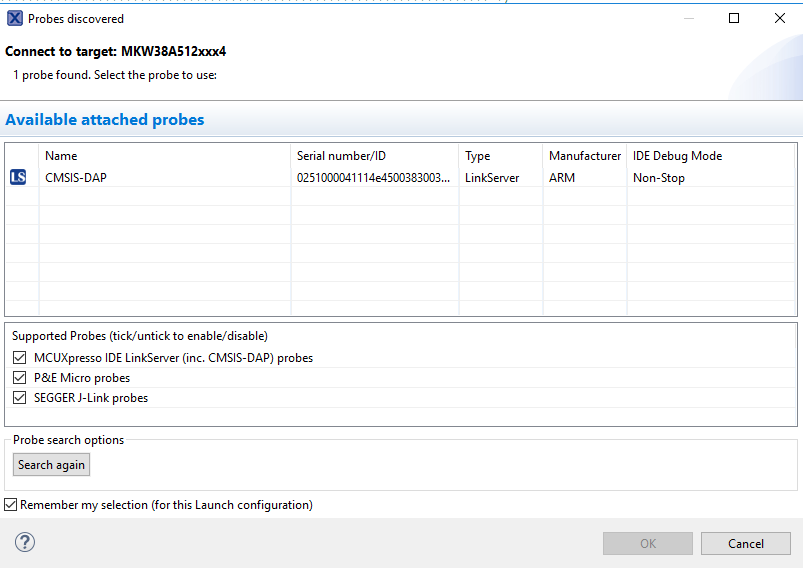
- ファームウェアがボードにダウンロードされ、デバッガが起動します
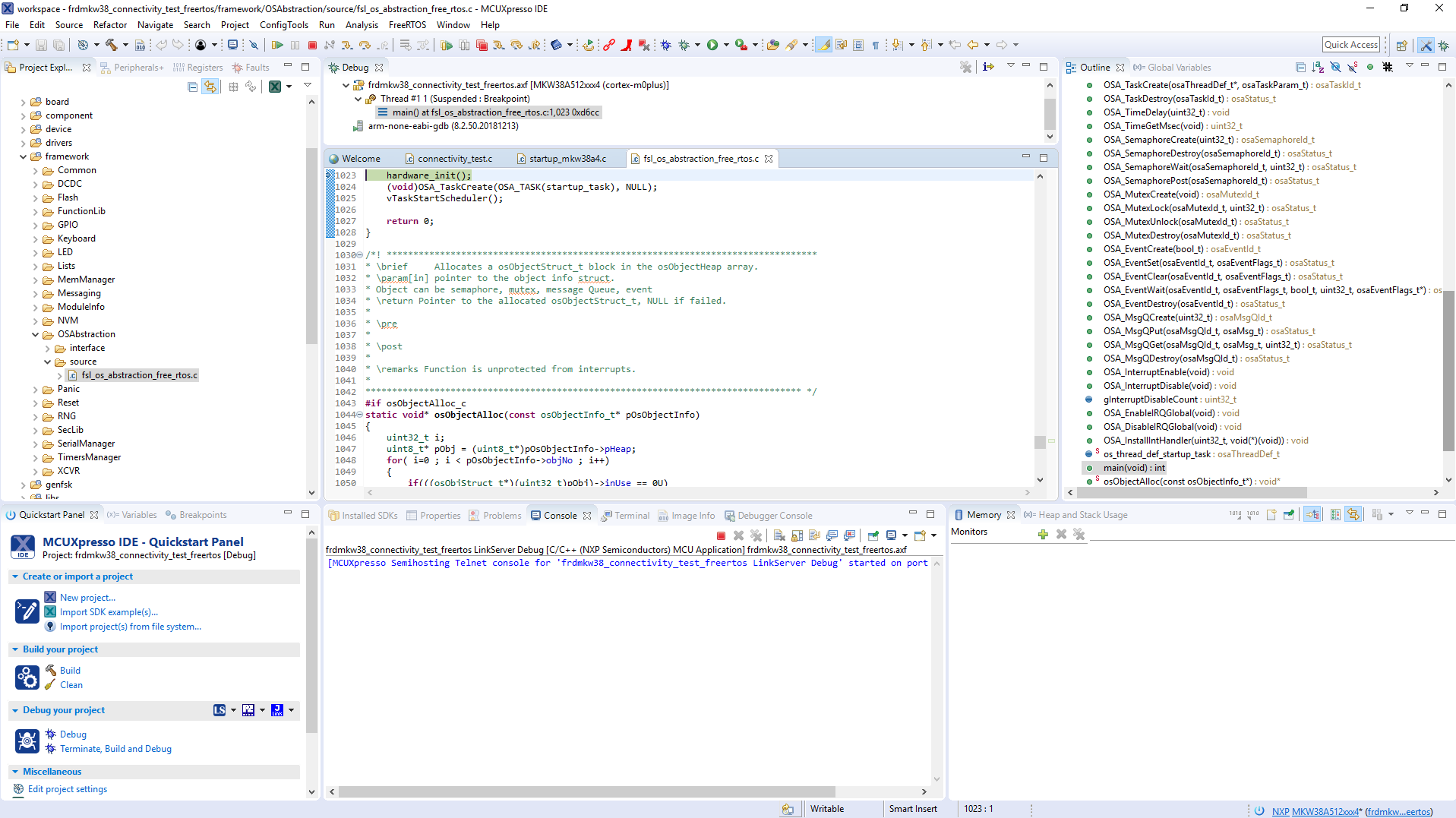
- Once the project has loaded, the debugger should stop at main(). ターミナル・エミュレータ・プログラムを開いて、FRDM-KW38 COMポートのセッションを開きます。次の設定値を用いてターミナルを設定します。
- ボーレート115,200
- パリティなし
- 8データ・ビット
- 1ストップ・ビット。
- Click the “Run” button to resume operation

- The following output will be displayed in the serial terminal
- Refer to
\docs\wireless\GENFSK\Generic FSK Link Layer Quick Start Guide.pdf
3.4 Bluetooth LE
Build and Run Connectivity Demos on the FRDM-KW38
3.5 Explore the Connectivity Example Codes
Bluetooth Low Energy
The KW38 Wireless Connectivity Software package comes with a long list of demo applications for Bluetooth Low Energy protocol. To see what's available, browse to the 'examples' folder: \boards\frdmkw38\wireless_examples\bluetooth.
3.6 Download the NXP IoT Toolbox for your Smartphone
In order to use the Bluetooth Low Energy and Hybrid examples, the NXP IoT Toolbox needs to be installed on a smartphone. This application provides several examples that can be used in conjunction with the connectivity stack to connect your phone to the development board over Bluetooth LE.
3.7 Build, Run and Debug Wireless Connectivity Examples
You probably want to build and debug a demo by yourself. Use the guide below to learn how to build and debug an example application from the Wireless Connectivity Stacks in the MCUXpresso IDE or IAR Embedded Workbench IDE.
Running a demo using IAR Embedded Workbench IDE
Bluetooth LE
ここでは以下の手順について説明します。
- Load and build the demo application in IAR Embedded Workbench
- Download and run the demo application
The example used below is for the "Heart Rate Sensor" demo, but these steps can be applied to any of the Wireless Connectivity demo applications.
Load and build the application demo
- Navigate to the Heart Rate Sensor demo (hrs) IAR workspace located in the next path:
\boards\frdmkw38\wireless_examples\bluetooth\hrs\freertos\iar 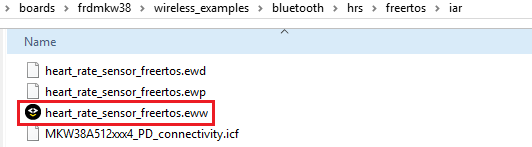
- After the workspace is open, select the project
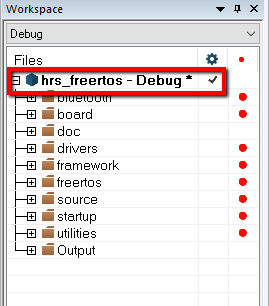
- Click the "Make" button to build the project

アプリケーション・デモをダウンロードして実行する
- Connect your FRDM-KW38 board to your PC
- Click on the Download and Debug button (green arrow located on the toolbar)

- Once the project has loaded, the debugger should stop at main()
- Click the "Stop" button to stop debugging the application. The Heart Rate Sensor demo enables low power by default, so, the debug pins are disabled to save power

- Open the NXP IoT Toolbox application on your mobile device and select the "Heart Rate"
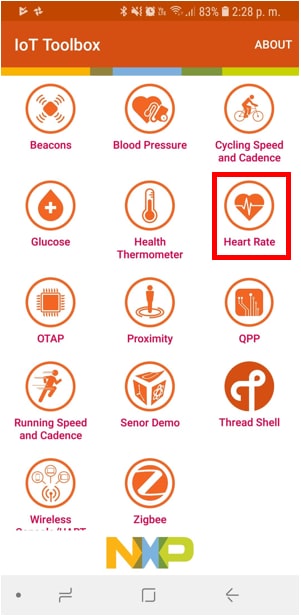
- Reset the FRDM-KW38 by pressing
SW1button and pressSW3to start advertising. Verify that the device is listed in the IoT Toolbox as shown in the next picture: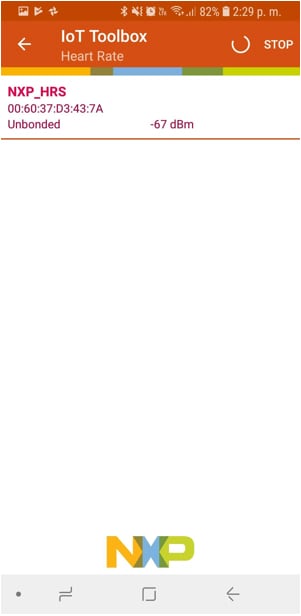
- Select the listed device to make a connection. The IoT Toolbox should display the information of the Heart Rate Sensor
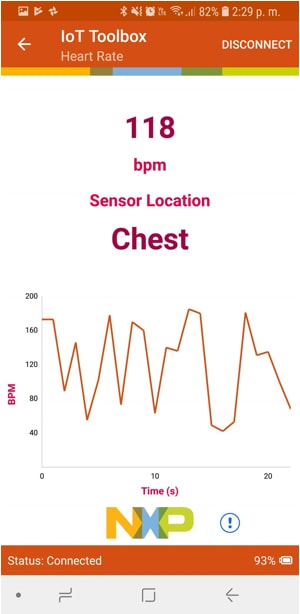
- Refer to
\docs\wireless\Bluetooth\Bluetooth Low Energy DEMO Application User’s Guide.pdf
Running a demo using MCUXpresso IDE
Bluetooth LE
ここでは以下の手順について説明します。
- Load and build the demo application in MCUXpresso IDE
- Download and run the demo application
The example used below is for the "Heart Rate Sensor" demo, but these steps can be applied to any of the Wireless Connectivity demo applications.
Load and build the application demo
- MCUXpresso IDEを開きます
- MCUXpresso IDEウィンドウ内のビューを[Installed SDKs(インストール済みSDK)]に切り替えます
- Open Windows Explorer, and drag and drop the FRDM-KW38 SDK (unzipped) file into the "Installed SDKs" view
-
次のポップアップが表示されます。Click on "OK" to continue the import:
- インストールされたSDKは、以下に示すように[Installed SDKs(インストール済みSDK)]ビューに表示されます。
サンプル・アプリケーションのビルド
The following steps will guide you through opening and running the "Heart Rate Sensor" example.
- Find the "Quickstart Panel" in the lower left-hand corner
- Then click on Import SDK example(s)
- Click on the frdmkw38 board to select that you want to import an example that can run on that board, and then click on Next
- In the search text box, type "hrs" to filter the example projects. Use the arrow button to expand the list and locate the "hrs" project (wireless_examples → bluetooth → hrs). Then, select the freertos version of the project and click "Finish"
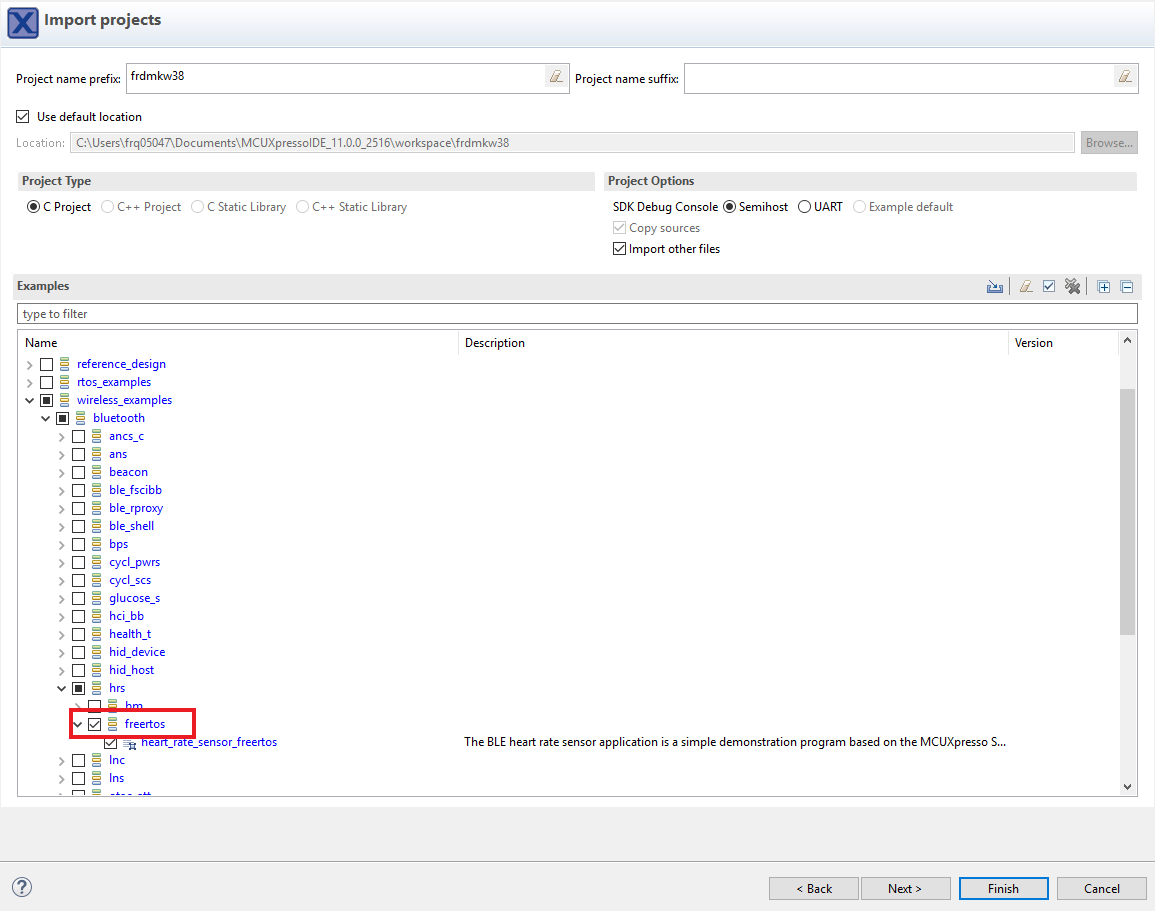
- Now build the project by clicking on the project name and then in the "Quickstart Panel" click on "Build"
- ビルドの進捗状況は[Console(コンソール)]タブで確認できます
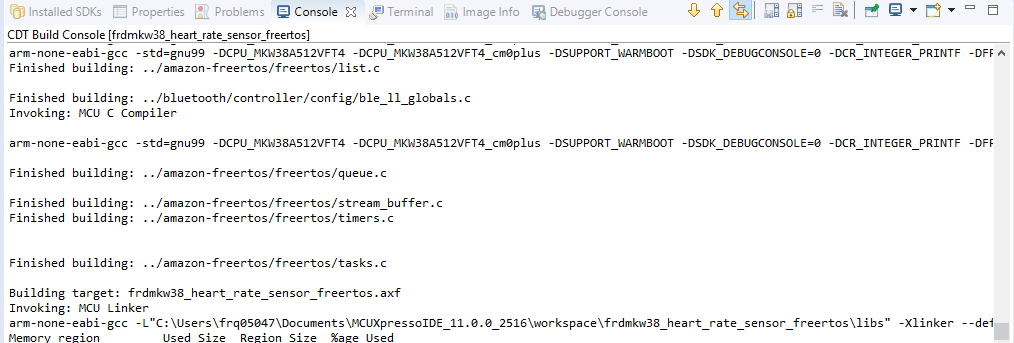
- プロジェクトがコンパイルされたので、ボードにフラッシュしてプロジェクトを実行できます
- Make sure the FRDM-KW38 board is plugged in, and click in the "Quickstart Panel" click on "Debug"
- MCUXpresso IDE will probe for connected boards and should find the DAPLink CMSIS-DAP debug probe that is part of the integrated OpenSDA circuit on the FRDM-KW38. Click on OK to continue
- ファームウェアがボードにダウンロードされ、デバッガが起動します
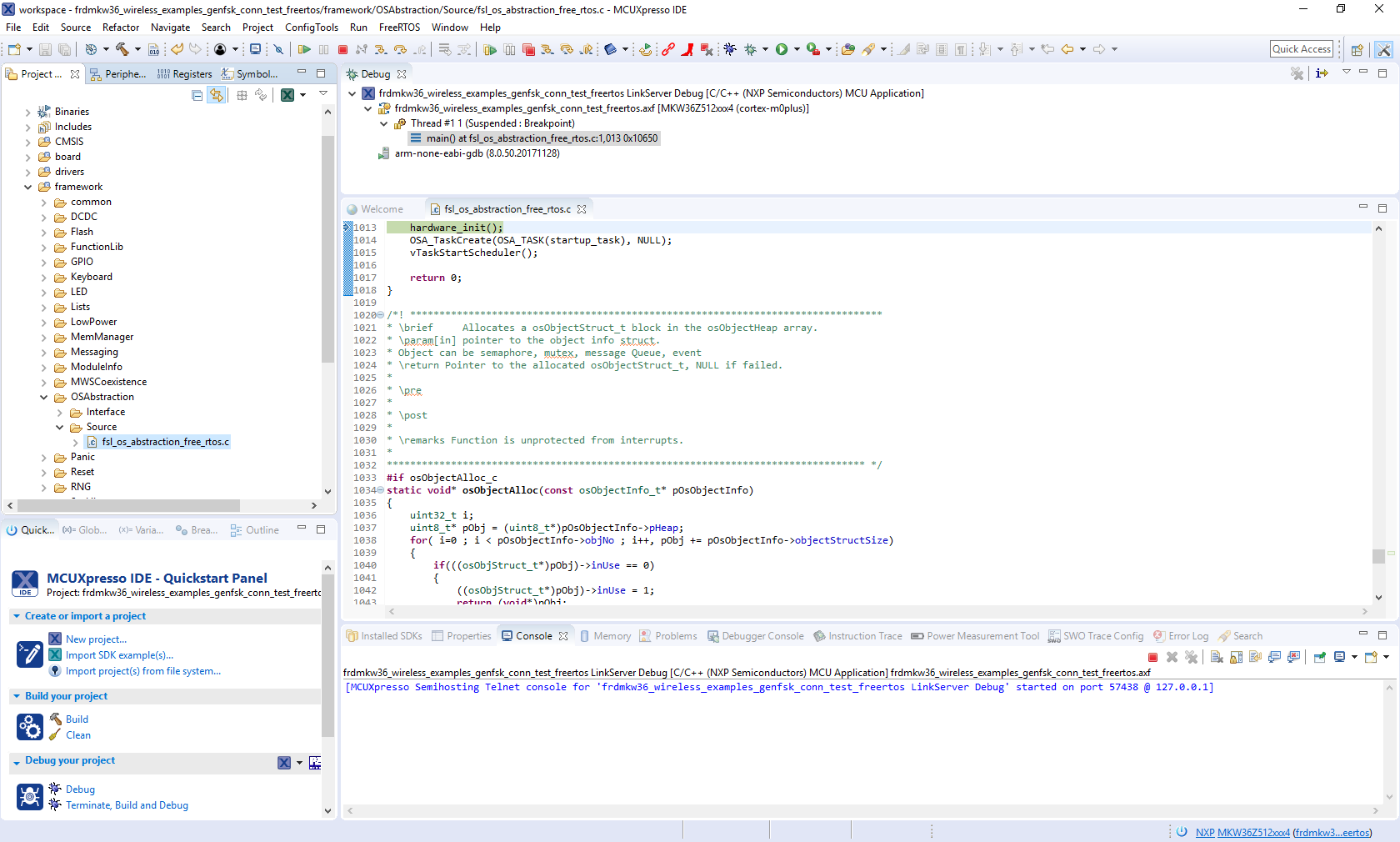
- Click the "Stop" button to stop debugging the application. The Heart Rate Sensor demo enables low power by default, so, the debug pins are disabled to save power
- Open the NXP IoT Toolbox application on your mobile device and click on the "Heart Rate"
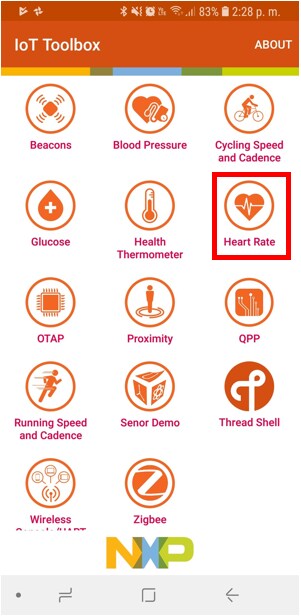
- Reset the FRDM-KW38 by pressing
SW1button and pressSW3to start advertising. Verify that the device is listed in the IoT Toolbox as shown in the next picture - Select the listed device to make a connection. The IoT Toolbox should display the information of the Heart Rate Sensor
-
Refer to
\docs\wireless\Bluetooth\BLE Demo Applications User's Guide.pdf
3.8 Hybrid (Gen FSK + Bluetooth LE)
Build and Run Connectivity Demos on the FRDM-KW38
3.9 Explore the Connectivity Example Codes
Hybrid (Gen FSK + Bluetooth LE)
The KW38 Wireless Connectivity Software package comes with a hybrid demo application (Gen FSK + Bluetooth LE). To see the hybrid demo application, browse to the 'examples' folder: \boards\frdmkw38\wireless_examples\hybrid.
3.10 Download the NXP IoT Toolbox for your Smartphone
khfhfdjgfjhgfkj
3.11 Build, Run and Debug Wireless Connectivity Examples
jdhjgfhjfkjfjkgvh
4. Create an Application for the FRDM-KW38
4.1 MCUXpresso SDKからのサンプル・プロジェクトのクローンを作成する
オプションA:MCUXpresso IDEを使用して、サンプル・プロジェクトのクローンを作成します。
MCUXpresso IDEを使用する
- MCUXpresso IDEを開きます
- 「Quickstart Panel(クイックスタート・パネル)」の[Import SDK Example(s)(SDKサンプルのインポート)]をクリックします
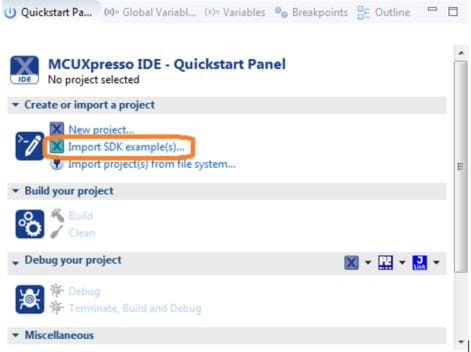
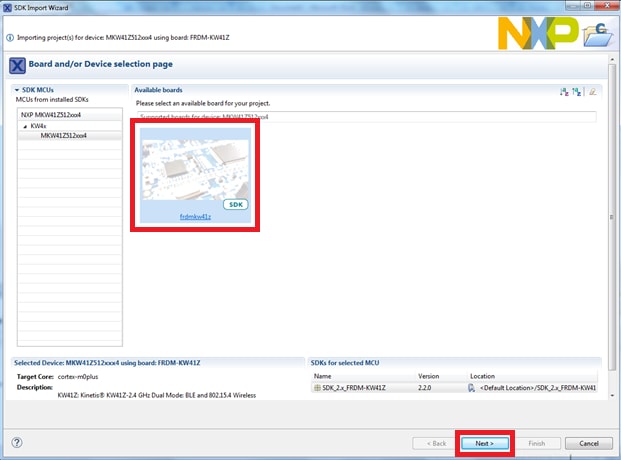
- Select the FRDM-KW38 board in the Import Wizard. Then, select Next
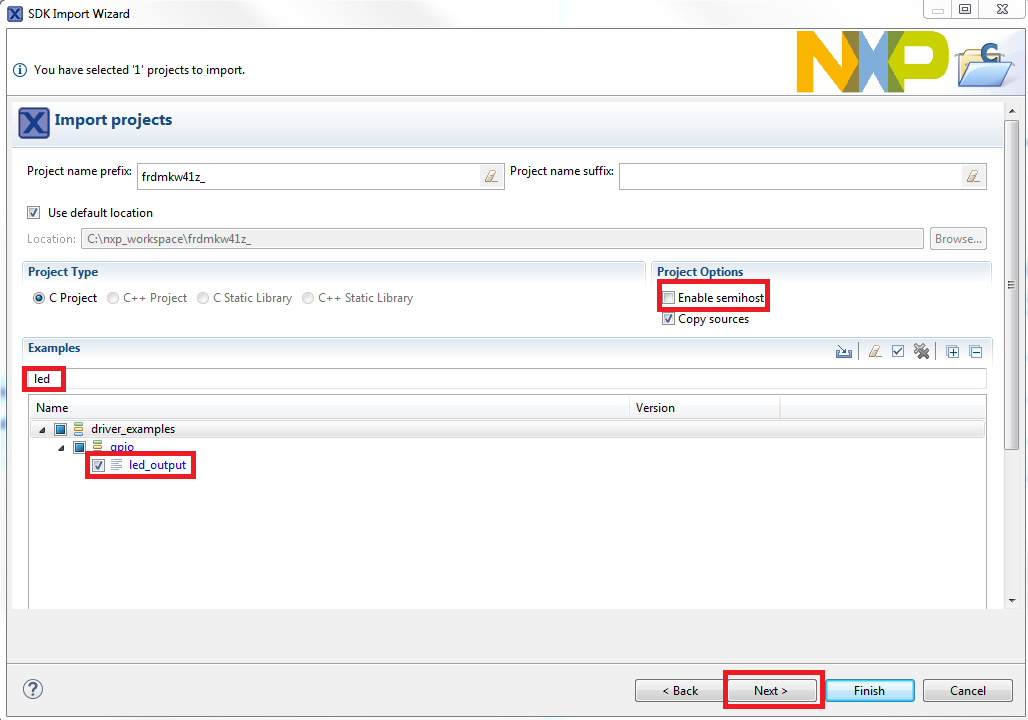
- Type "led" into the search bar, and select the "led_output" project under the GPIO driver example. Then, select "Next". これにより、このLEDプロジェクトのスタンドアロン・コピーが新規に作成され、MCUXpressoワークスペース内に配置されます。To use the UART for printing (instead of the default semihosting), clear the "Enable semihost" checkbox under the project options. Then, click on "Next"
- On the Advanced Settings wizard, clear the checkbox "Redirect SDK "PRINTF" to C library "printf"" in order to use the MCUXpresso SDK console functions for printing instead of generic C library ones. Then click on "Finish"

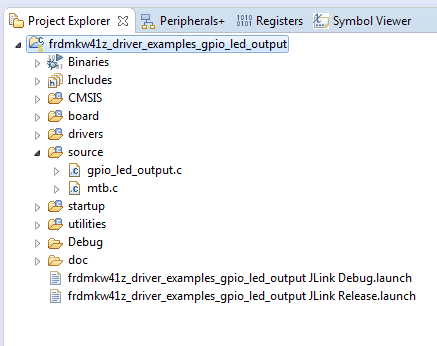
- Click on the "led_output" project in the Project Explorer View and build, compile and run the demo as described previously
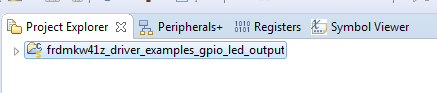
- ボードの赤色のLEDが点滅しているのが確認できるはずです
- デバッグ・セッションを終了します
オプションB:MCUXpresso Config Toolを使用して、サード・パーティ製IDEで使用するために既存のMCUXpresso SDKのサンプルのクローンを作成します。
MCUXpresso Config Toolsを使用する
- MCUXpresso Config Toolsを開きます
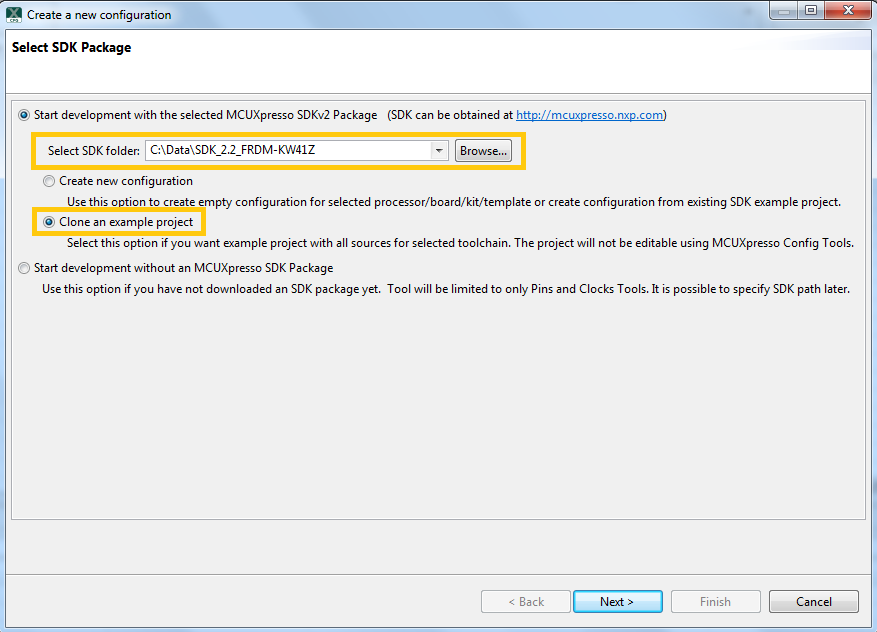
- In the wizard that comes up, browse to the place where the MCUXpresso SDK was unzipped and then select the "Clone an example project" radio button and click on Next
- クローンを作成するプロジェクトを選択します。For this example, we want to use the LED project. You can filter for this by typing "led" in the filter box and then selecting the "gpio/led_output" project. Then click on Next
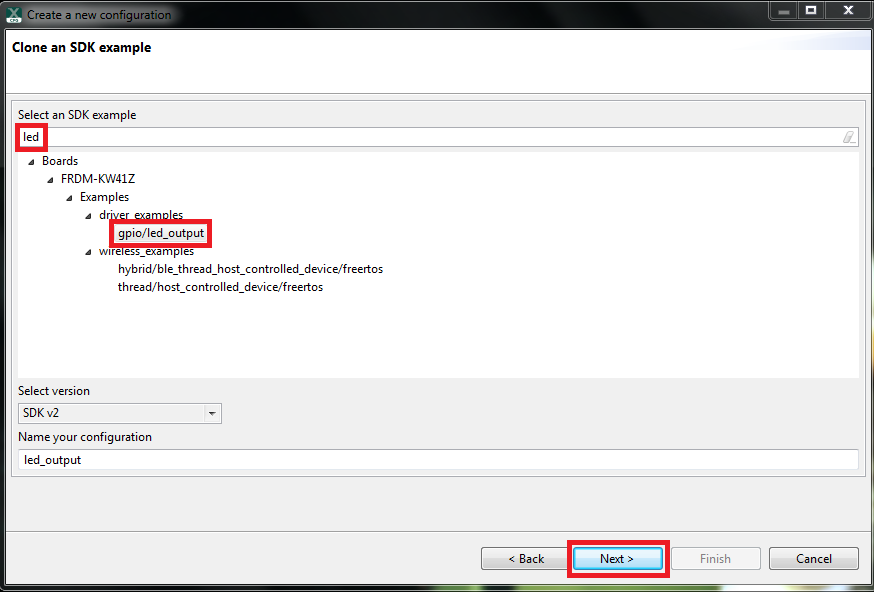
- 次に、クローンのプロジェクトを配置するディレクトリを選択し、プロジェクトに名前を付けて、使用するIDEを選択します。SDKのビルド時にオンラインのSDKビルダで選択されたIDEのみが利用可能になることにご注意ください。[Finish(完了)]をクリックします
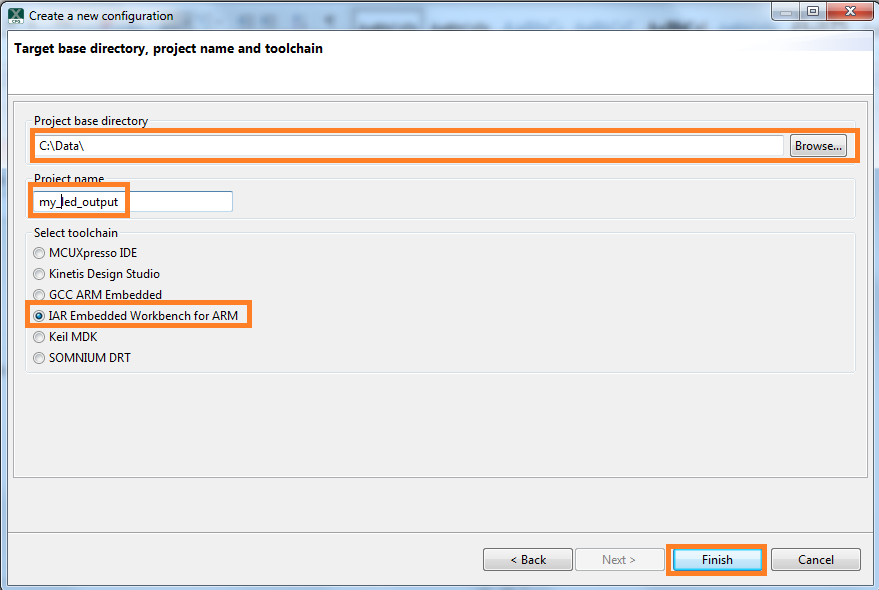
- クローンの作成後、選択したディレクトリに移動し、IDEでプロジェクトを開きます。前のセクションで行ったように、プロジェクトをインポート、コンパイル、および実行します
- ボードの赤色のLEDが点滅しているのが確認できるはずです
- デバッグ・セッションを終了します
4.2 ピン・ツールの使用
次に、MCUXpresso Config Toolsのピン・ツールを使用し、プロジェクトに新しいGPIOピンを追加してLEDを点滅させる方法を紹介します。
Use Pins Tool
- MCUXpresso Config Toolsを開きます
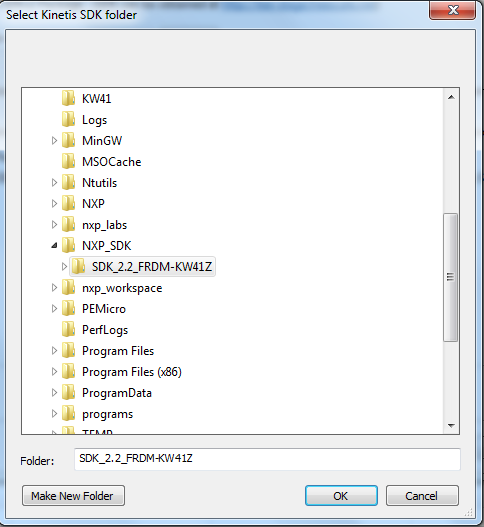
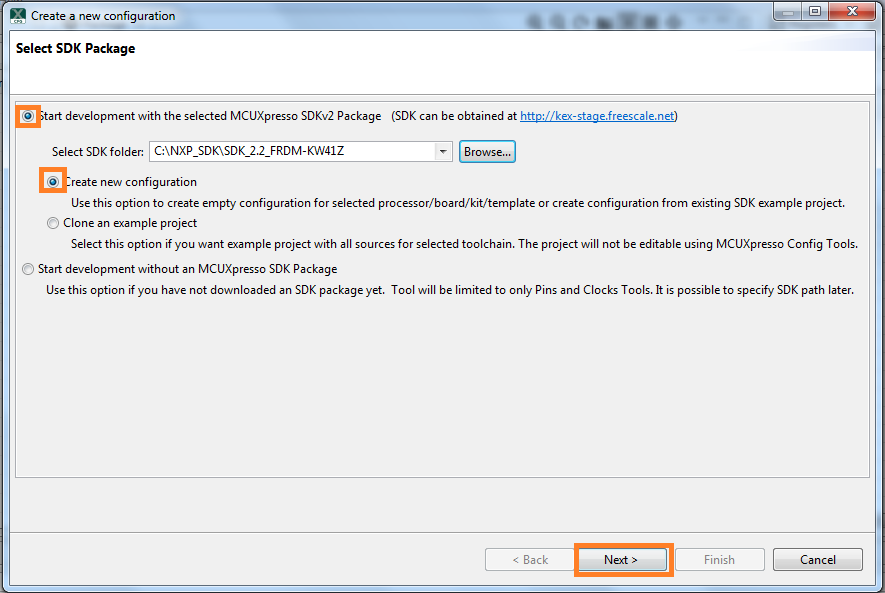
- ウィザードで、開発を開始する際にSDKを使用するかどうかを確認するメッセージが表示されます。SDKを使用して開発を開始すること、および新しい構成を作成することを選択します。Use the "Browse" button to navigate to the location of your unzipped SDK installation.
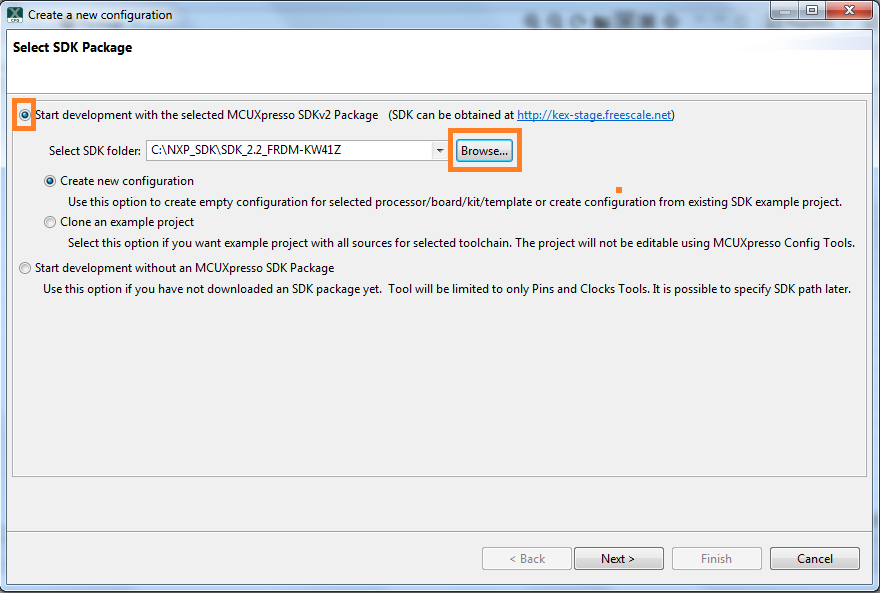
- ファイル・システムでSDKの最上位フォルダを選択します。Select OK
- ウィザードで、新しい設定を作成するか、サンプル・プロジェクトのクローンを作成するかを尋ねるメッセージが表示されます。We will Create a new configuration that will be based on the "led_output" project settings from the SDK. Select Next to continue
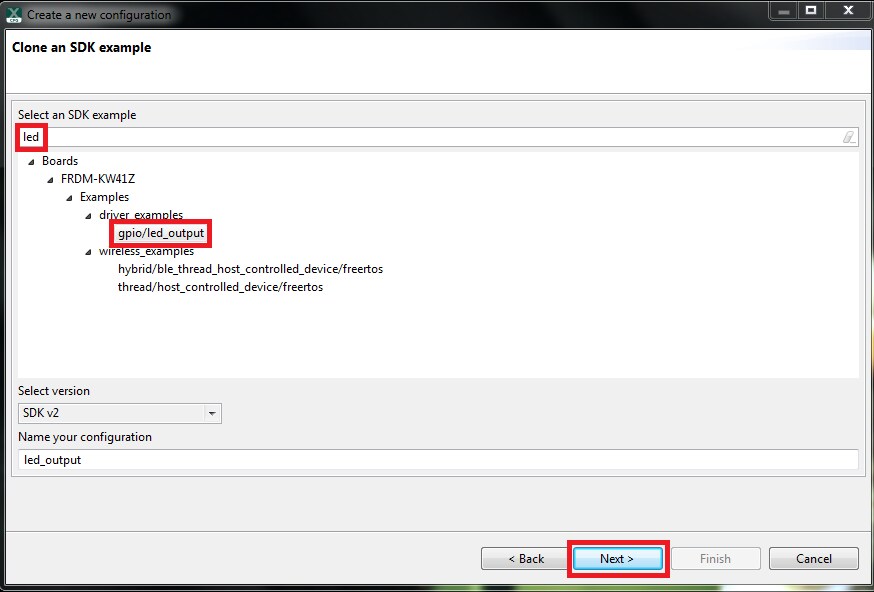
- Search for the led_output example by typing "led" in the search bar. led_outputサンプルを選択し、[Finish(完了)]を押します
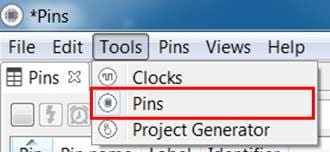
- Open the pins tool by selecting Tools → Pins from the toolbar
- これで、ピン・ツールにled_outputプロジェクトのピン構成が表示されます
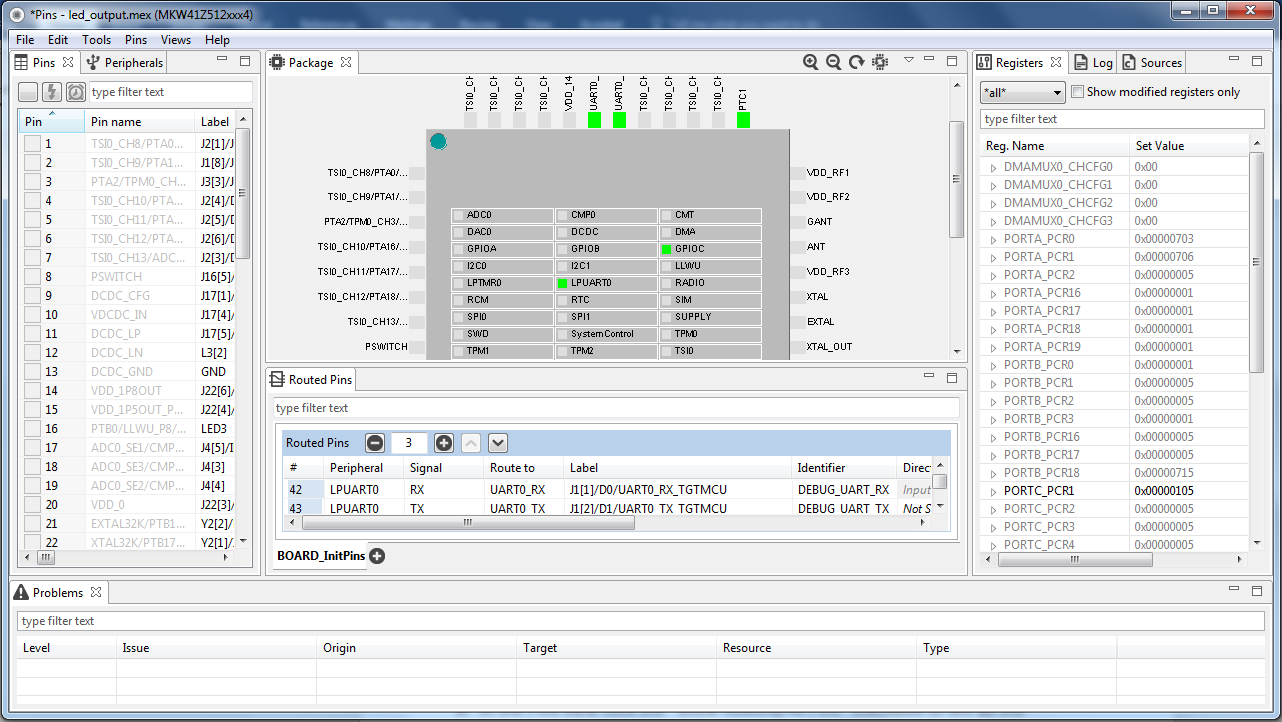
- In the Pins view, click the "Show Routed/All Pins" checkbox to see all the routed pins. ルーティングされたピンには、ピンの名称の横に緑色のボックスが表示されます。ルーティングされた各ピンに選択された機能は、表内で緑色にハイライト表示されます
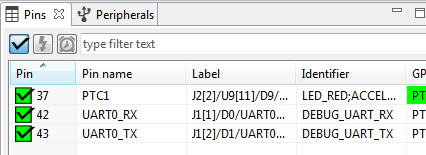
- In the current configuration,
PTC1is routed as a GPIO to toggle the red LED. Let's disablePTC1, and change the mux setting ofPTA18to use its GPIO functionality to drive the blue LED - Disable
PTC1(Red LED) as a GPIO by clicking thePTC1field under the GPIO column. これによりピンが無効になり(ボックスのピンのチェックが外れます)、リストからも削除されます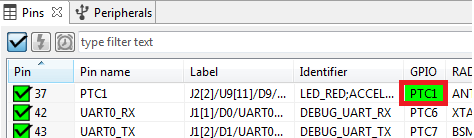
- Now, route PTA18 as a GPIO. First, deselect the "Show Routed All/Pins" so that all the pins are displayed again. Then, search
PTA18in the pins view. 最後に、GPIO列のボックスをクリックします。ボックスが緑色でハイライト表示され、ピンの横にチェックが表示されます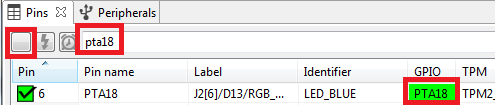
- フィルタされたテキストを消去すると、更新されたビューが以下のように表示されます。Note that
PTB21also appears in the Routed Pins tab andPTB22has been removed. pin_mux.cファイルも更新され、変更が反映されています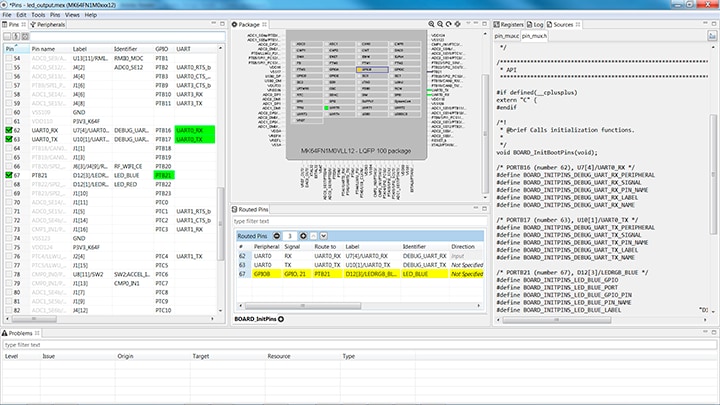
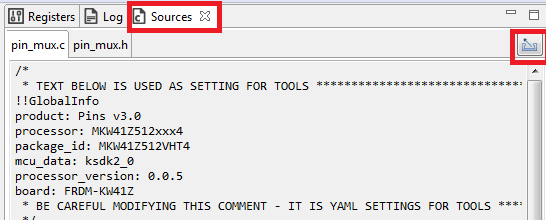
- Now export the pin_mux.c and pin_mux.h files by clicking on the Sources tab on the right side to get to the Sources view, and selecting the export icon
- pin_mux.cファイルとpin_mux.hファイルをエクスポートするディレクトリを選択します。In this example export to the "board" folder in the led_output project in the workspace that was created in the previous section (i.e.
C:\nxp_workspace\frdmkw41z_driver_examples_gpio_led_output\board). Select Finish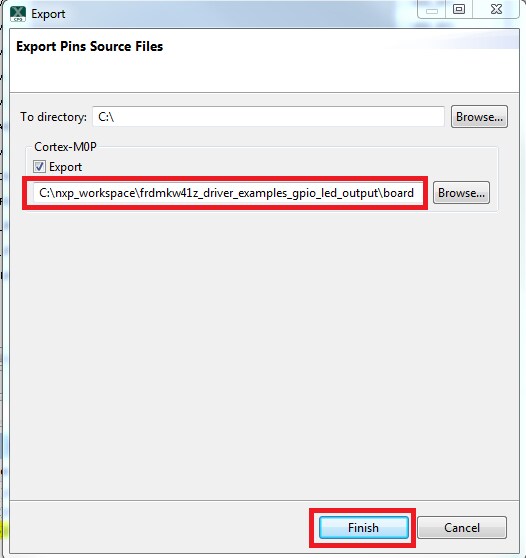
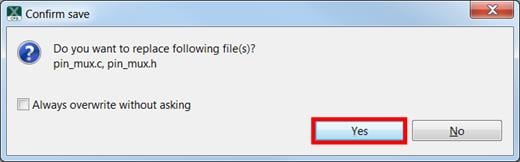
- [Yes(はい)]をクリックして、既存のpin_mux.cファイルとpin_mux.hファイルを置き換えます
- We'll use MCUXpresso IDE for the rest of the instructions but the same steps can be done in other 3rd party IDEs. Under the "led_output" project, double-click the gpio_led_output.c file in the source folder to display the file in the editor. Notice that the macros used in the GPIO driver functions refer to the BOARD_LED (i.e. red LED)
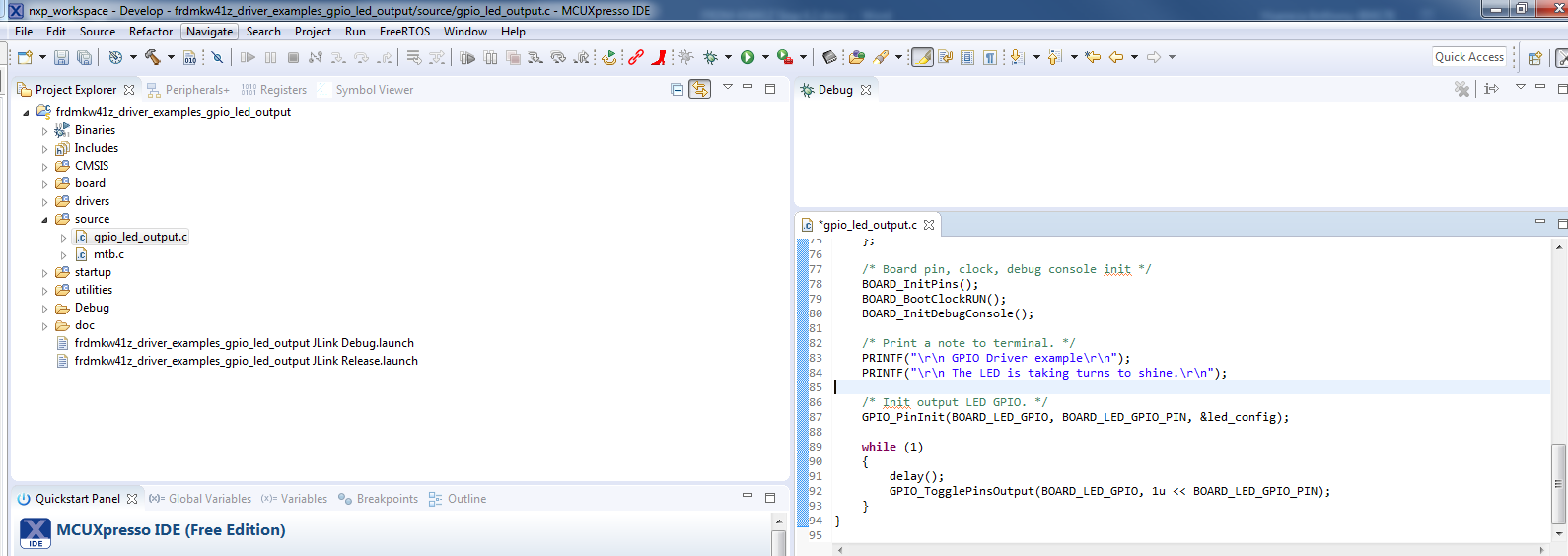
- Change the defines for BOARD_LED_GPIO to the
GPIOAand the BOARD_LED_GPIO_PIN to "18"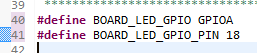
- 前のセクションで行ったように、プロジェクトをビルドしてダウンロードします
- アプリケーションを実行します。You should now see the blue LED blinking
- デバッグ・セッションを終了します
4.3 クロック・ツールの使用
Next use the Clocks tool that is part of the MCUXpresso Config Tools to change the clock settings and change the rate that the LED blinks.
Use Clocks Tool
- MCUXpresso Config Toolsを開きます
- Open the Clocks tool from the toolbar: Tools → Clocks
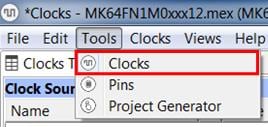
- The clock configuration for the "led_output" project will appear in the clocks tool:
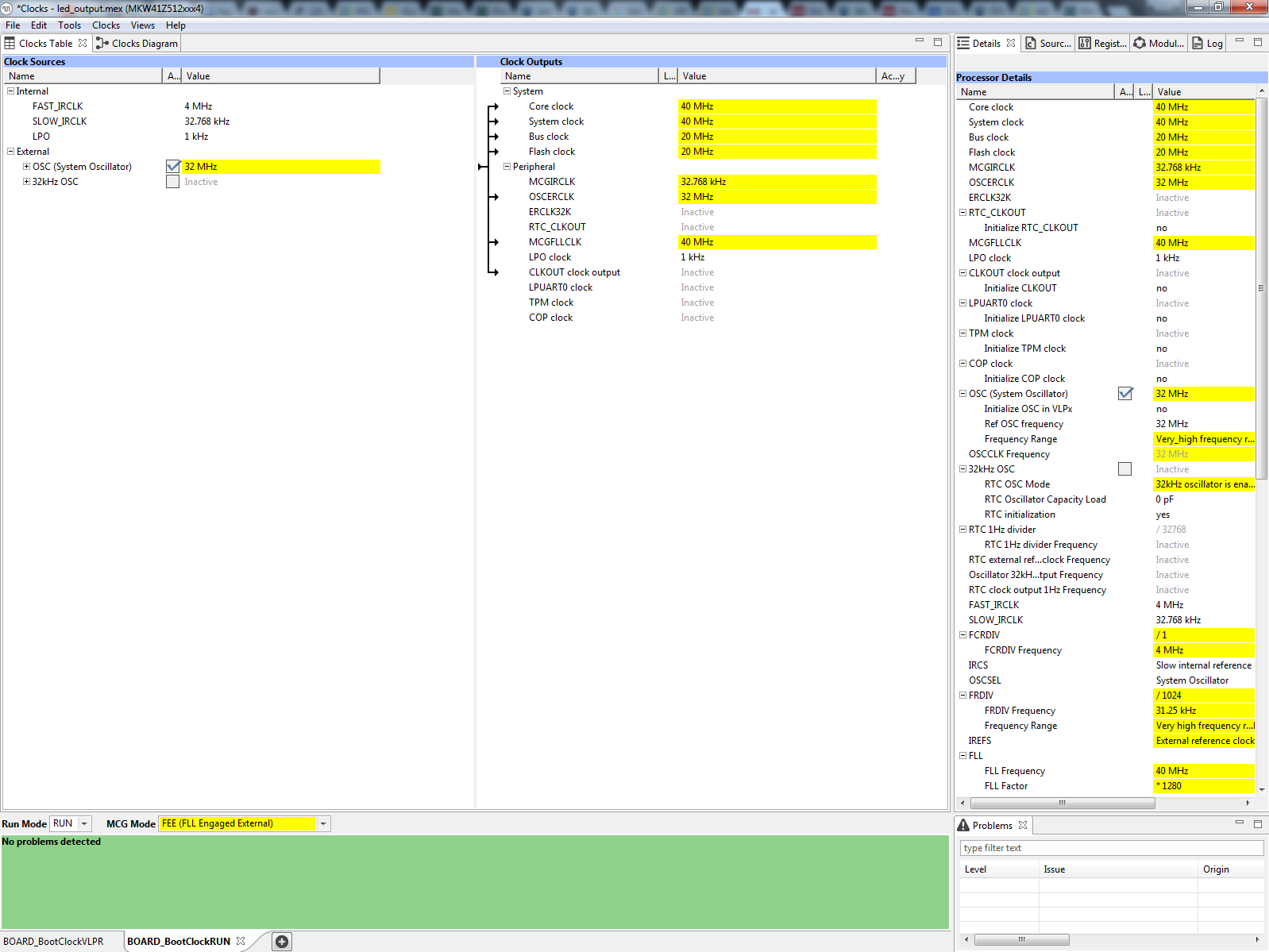
- 左上隅のタブをクリックして[Clocks Diagram(クロック・ダイアグラム)]ビューに切り替え、左下隅のタブをクリックして、BOARD_BootClockRUNクロック・モードが表示されていることを確認します
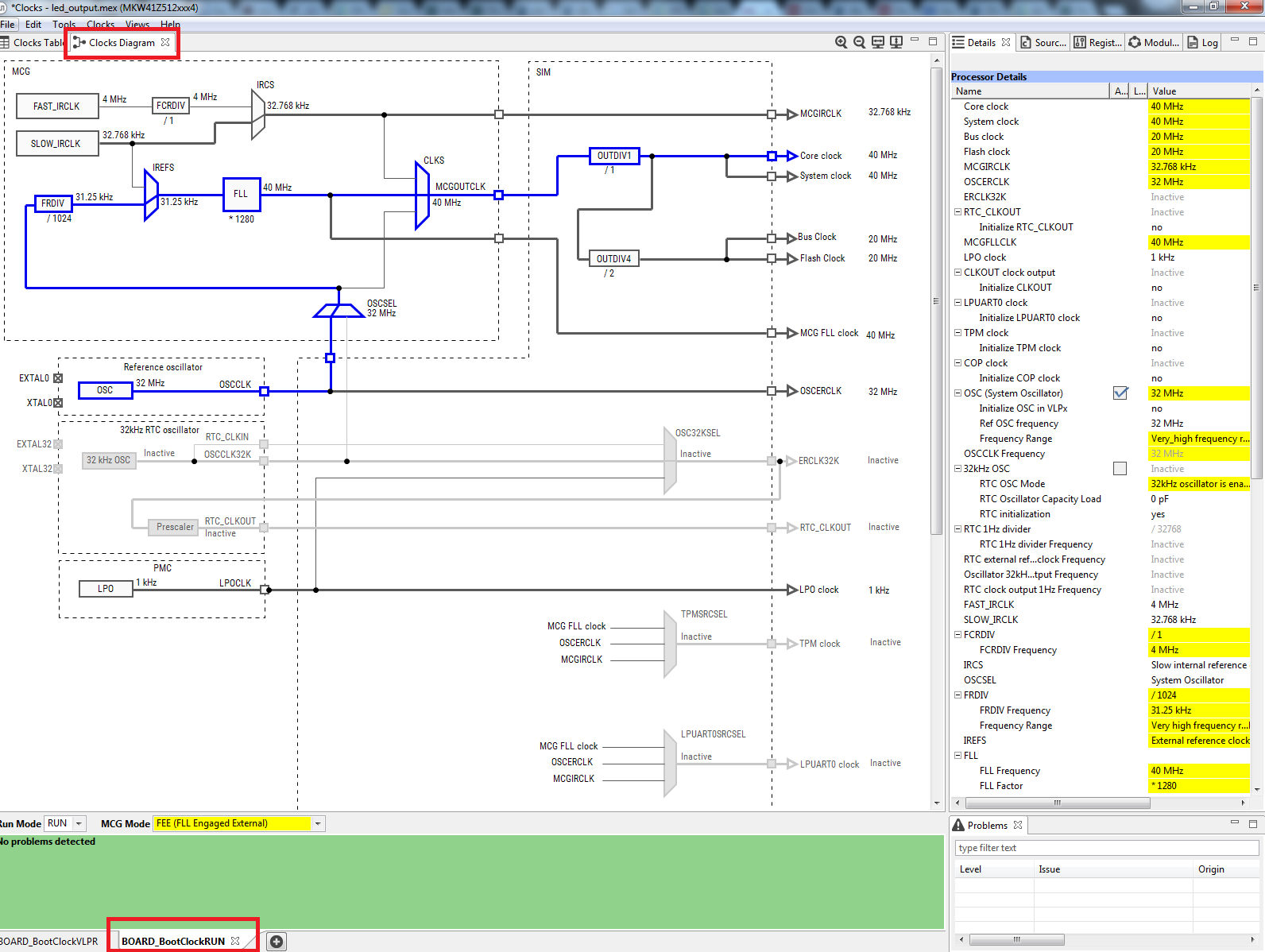
- Change the core clock frequency by clicking in the Core Clock field and typing "10 MHz". You'll see all the associated clock frequencies automatically change as well
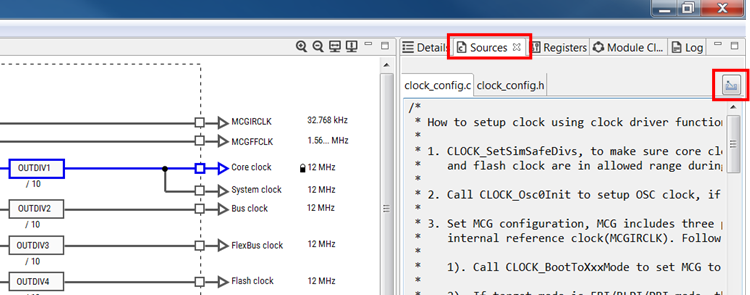
- Now open the "Sources" tab and export the clock_config.c and clock_config.h files
- pin_mux.cファイルとpin_mux.hファイルをエクスポートするディレクトリを選択します。In this example export to the "board" folder in the led_output project in the workspace that was created in the previous section (i.e.
C:\nxp_workspace\frdmkw41z_driver_examples_gpio_led_output\board). Select Finish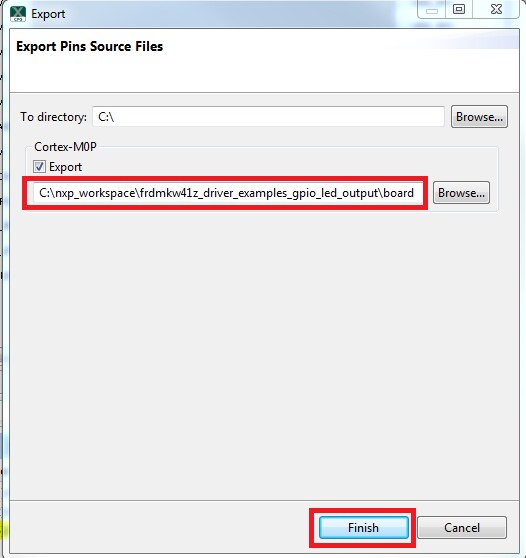
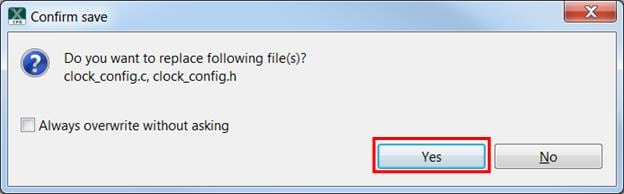
- [Yes(はい)]を押して、既存のclock_config.cファイルとclock_config.hファイルを置き換えます
- Now open the led project in your IDE, and build, download and run the project as you did before
- 青色のLEDの点滅速度が遅くなっています
4.4 成功
With the application modified, you will see the FRDM-KW38's blue LED slowly blinking. また、ターミナル・プログラムを使用して、ターミナル出力を確認できます。
Tera Termチュートリアル
Tera Termチュートリアル
Tera Termは、広く利用されているオープン・ソースのターミナル・エミュレーション・アプリケーションです。このプログラムを使用して、NXP開発プラットフォームの仮想シリアル・ポートから送信された情報を表示できます。
- DownloadTera Term from SourceForge. ダウンロードしたら、インストーラを実行し、このウェブページに戻って手順を続行します
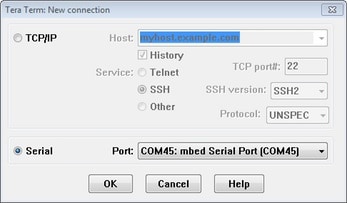
- Tera Termを起動します。初めて起動する際には、次のダイアログが表示されます。シリアル・オプションを選択します。ボードが接続されている場合は、COMポートが自動的にリスト内に表示されます
- 事前に確認したCOMポート番号を使用して、シリアル・ポートをボーレート115,200、8データ・ビット、パリティなし、1ストップ・ビットに設定します。この設定は[Setup(セットアップ)]->[Serial Port(シリアル・ポート)]から行うことができます
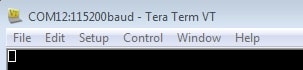
- 接続が確立されているか検証します。確立されている場合、Tera Termのタイトル・バーに次のように表示されます
- 以上で設定は完了です
PuTTYチュートリアル
PuTTYチュートリアル
PuTTYは、広く利用されているターミナル・エミュレーション・アプリケーションです。このプログラムを使用して、NXP開発プラットフォームの仮想シリアル・ポートから送信された情報を表示できます。
- 下のボタンをクリックしてPuTTYをダウンロードします。ダウンロードしたら、インストーラを実行し、このウェブページに戻って手順を続行します
- 選択したダウンロードのタイプに応じて、ダウンロードした*.exeファイルをダブルクリックするか、[Start(スタート)]メニューから選択して、PuTTYを起動します
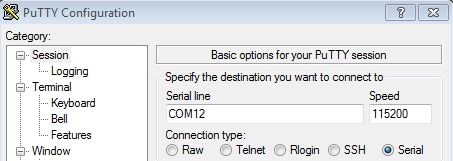
- In the window that launches, select the Serial radio button and enter the COM port number that you determined earlier. ボーレートもあわせて指定します。今回は115,200を入力します
- [Open(開く)]をクリックして、シリアル接続を確立します。ボードが接続されていて、正しいCOMポートが入力されていれば、ターミナル・ウィンドウが開きます。設定が正しくない場合は、アラートが表示されます
- 以上で設定は完了です
セキュリティと整合性
セキュリティと整合性
| ドキュメントとビデオ | 説明 |
|---|---|
| AN4507 Using the Kinetis Security and Flash Protection Features | Using the system security and flash protection features on Kinetis MCUs to protect code and data from unauthorized access or modification. |
有線通信
有線通信
The FRDM-KW38 includes an NXP TJA1057 CAN transceiver and an NXP TJA1027 LIN transceiver.
| ドキュメントとビデオ | 説明 |
|---|---|
| AN12377 Tuning I²C Timing in Target Mode | How to configure the I²C timing of a responder device to meet application needs, which apply to Kinetis parts that contain I²C IP instead of LPI2C. |
| AN12948 Using LIN or CAN Bus to Upgrade Image on the KW36/38 | How to use the LIN or CAN nodes, which have OTAP capability to upgrade the nodes, which have no OTAP capability, by LIN or CAN bus. |
MCUXpresso SDKサンプル
SDKには複数のサンプル、デモ、ドライバが含まれており、初めて使用する際に役立ちます。有線通信に関するいくつかの一般的な例を以下に挙げます。
Bubble Demo (I²C example)
Demonstrates basic usage of the onboard accelerometer to implement a bubble level. A bubble level utilizes two axes to visually show deviation from a level plane (0 degrees) on a given axis.
Path:
LIN Demo
Demonstrates signal transfer between controller and responder nodes using the LIN stack driver built on Low Power UART.
Path:
シェルのデモ(UARTの例)
コマンドライン・シェル・アプリケーションの実装方法のデモ。
Path:
ドライバ・サンプル
A number of driver examples exist within the SDK including I²C, DSPI, FLEXCAN and Low Power UART.
Path:
ワイヤレス・コネクティビティ
ワイヤレス・コネクティビティ
| ドキュメントとビデオ | 説明 |
|---|---|
| AN12561 Kinetis KW38 Bluetooth Low Energy 5.0 Advertising Extension Enablement in Legacy Bluetooth Low Energy Examples | Provides instructions on how to enable new Bluetooth Low Energy 5.0 Advertising extension features in a legacy Bluetooth Low Energy example. |
| AN2731 Compact Planar Antennas for 2.4 GHz Communication | This document focuses on helping customers understand enough board layout and antenna basics to select a correct antenna type for their application and avoid typical layout mistakes that cause performance issues. Several popular antennas are presented as possible solutions for IEEE 802.15.4 and Bluetooth low energy applications. |
| AN12872 Anti-relay Attack Using GFSK | This document introduces the anti-relay attack using GFSK, focusing on the multi-link monitoring concepts and applications. It proposes a system implementation using KW36 or KW38 Wireless MCU. |
| AN12977 KW38/KW36 Localization Based on RSSI Ranging | Provides an introduction to localization based on the Bluetooth LE RSSI ranging. It implements a simple trilateral localization system using the Kinetis KW38 wireless MCU. |
| AN12517 FRDM-KW38 Co-existence with RF System Evaluation Report for Bluetooth Low Energy Application | Provides the RF evaluation test results of the FRDM-KW38 for Bluetooth LE applications (2FSK modulation). It includes the test setup description and the tools used to perform the tests on your own. |
| AN12272 Use of Unique 40-bit MAC Address in Kinetis Wireless Microcontrollers | Describes how IEEE MAC addresses are handled in the Bluetooth low energy (BLE) and IEEE 802.15.4. |
| FRDM-KW38 Radio Certification Documents | FRDM-KW38 platforms have passed the CE RED and RCC radio certification. Find information on the certification documents and test reports here. |
| KW37/38/39 Bluetooth LE Range Performance | Provides information on distance measurements depending on the Bluetooth LE data rate using the FRDM-KW38 board. |
MCUXpresso SDKサンプル
SDKには複数のサンプル、デモ、ドライバが含まれており、初めて使用する際に役立ちます。Some common examples for wireless connectivity are listed below.
Bluetooth Low Energy Demos
How to use the Bluetooth Low Energy protocol.
Path:
Generic FSK Demos
How to use the Generic FSK.
Path:
Hybrid Bluetooth LE and GenFSK Demo
How to use the Bluetooth Low Energy protocol and Generic FSK in a single application.
Path:
パワー・マネジメント
パワー・マネジメント
| ドキュメントとビデオ | 説明 |
|---|---|
| AN4503 Power Management for Kinetis MCUs | When and how to use Kinetis low-power modes. |
| AN12459 Kinetis KW38 Power Consumption Analysis | Provides information about the power consumption of Kinetis KW39/38/37 wireless MCU when using BLE protocol and how the software and hardware are configured to achieve best low-power operation. |
| AN5025 MKW4xZ/3xZ/3xA/2xZ DC-DC Power Management | Describes the usage and operation of the DC-DC switching Power Supply converter for the MKW4xZ/3xZ/3xA/2Xz families. |
| Configuration for Unused pins/GPIOs on Kinetis | Best practices to configure a GPIO if the pin is not used. |
MCUXpresso SDKサンプル
SDKには複数のサンプル、デモ、ドライバが含まれており、初めて使用する際に役立ちます。Some common examples for power management are listed below.
Power Mode Switch Demo
Demonstrates the use of power modes in the SDK.
Path:
パワー・マネージャのデモ
How to change power modes in the SDK.
Path:
ADC Low Power Demo
Demonstrates the usage of the ADC peripheral while in a low power mode.
Path:
Bluetooth LE Responder Low Power Demo
Demonstrates the usage of low power mode on a Bluetooth LE responder device.
Path:
Bluetooth LE Controller Low Power Demo
Demonstrates the usage of low power mode on a Bluetooth LE controller device.
Path:
デバイス管理とセキュアOTA
デバイス管理とセキュアOTA
| ドキュメントとビデオ | 説明 | ダウンロード |
|---|---|---|
| AN4282 Using the Kinetis Family Enhanced EEPROM Functionality | Explains the features and usage of the Enhanced EEPROM functionality. | - |
| FRDM-KW38 OpenSDA Bootloader and Application Webpage | Provides information about the power consumption of Kinetis KW39/38/37 wireless MCU when using BLE protocol and how the software and hardware are configured to achieve best low-power operation. | - |
| AN12979 KW38 Integrating the OTAP Client Service into a Bluetooth LE Peripheral Device | Describes the integration of the Over The Air Profile into Bluetooth LE peripheral examples. | ダウンロード |
| AN12980 KW38 Integrating the OTAP Client Service into a Bluetooth LE Central Device | Describes the integration of the Over The Air Profile into Bluetooth LE examples. | ダウンロード |
| Reprogramming a KW38 device using the OTAP Client Software | This document guides to load a new software image in a KW38 device through (Over The Air Programming) OTAP Bluetooth LE service. | - |
MCUXpresso SDKサンプル
SDKには複数のサンプル、デモ、ドライバが含まれており、初めて使用する際に役立ちます。Some common examples for device management and secure OTA are listed below.
Bluetooth Low Energy Demos
How to use the Bluetooth Low Energy protocol.
Path:
Flash Examples
Demonstrate flash driver usage in the SDK environment.
Path:
Generic FSK Demos
How to use the Generic FSK.
Path:
Hybrid Bluetooth LE and GenFSK Demo
How to use the Bluetooth Low Energy protocol and Generic FSK in a single application.
Path:
設計・リソース
チップに関するドキュメント
ソフトウェア
- MCUXpresso SDK - SDK Builder
- MCUXpresso SDKのスタート・ガイド
- MCUXpresso SDK APIリファレンス・マニュアル
- Evaluation Hardware Debug Software
サポート
トレーニング
Want to learn more about using the FRDM-KW38? オンラインの簡単な技術セッションから実践的な詳細トレーニングまで、さまざまなトレーニングを用意しています。
| ドキュメントとビデオ | 説明 |
|---|---|
| MCUXpresso IDEとMCUXpresso Config Toolsを使用した基本的なアプリケーション開発 | この3部構成のビデオ・シリーズでは、インポートされたSDKサンプル・プロジェクトを使用する際や新規プロジェクトを作成する際における、MCUXpresso IDEとConfig Tools間の基本的なインタラクションについて取り上げています。 |
| AN12518 Hardware Design Considerations for MK39A/38A/37A/38Z/37Z Bluetooth LE Devices | Describes Printed Circuit Board (PCB) design considerations for the MKW39A/38A/37A/38Z/37Z 48-pin QFN (HVQFN-7 x 7 Pitch 0.5 mm) wettable flank package. Included are layouts of the component copper layer, solder mask and solder paste stencil. |
| The Best Way to Build Your PCB Right the First Time Using the KW38 | All of the important documents in one place concerning radio performance, low power and radio certification. |
| KW38 KW39 KW37 Hardware Board PCB Design-in Checklist | Describes the usage and operation of the DC-DC switching Power Supply converter for the MKW4xZ/3xZ/3xA/2Xz families. |
| Project CHIPの未来を切り開く | In this session, we'll take a closer look at Project CHIP and illustrate how NXP's portfolio is uniquely positioned to support Project CHIP-based designs. |
フォーラム
Connect with other engineers and get expert advice on designing with the FRDM-KW38 on one of our community sites.
このページ
- 2.1
Installing Software for the FRDM-KW38
- 2.2
Download MCUXpresso SDK with Connectivity Software
- 2.3
ツールチェーンをインストールする
- 2.4
MCUXpresso Config Tools
- 2.5
PCを設定する
- 3.1
Gen FSK
- 3.2
Explore the Connectivity Example Code
- 3.3
Build, Run and Debug Wireless Connectivity Examples
- 3.4
Bluetooth LE
- 3.5
Explore the Connectivity Example Codes
- 3.6
Download the NXP IoT Toolbox for your Smartphone
- 3.7
Build, Run and Debug Wireless Connectivity Examples
- 3.8
Hybrid (Gen FSK + Bluetooth LE)
- 3.9
Explore the Connectivity Example Codes
- 3.10
Download the NXP IoT Toolbox for your Smartphone
- 3.11
Build, Run and Debug Wireless Connectivity Examples